> ## Documentation Index
> Fetch the complete documentation index at: https://docs.getcara.ai/llms.txt
> Use this file to discover all available pages before exploring further.
# Coverage Comparison
> Compare coverage details across multiple quotes or policies to identify key differences, gaps, and overlaps.
### How it works
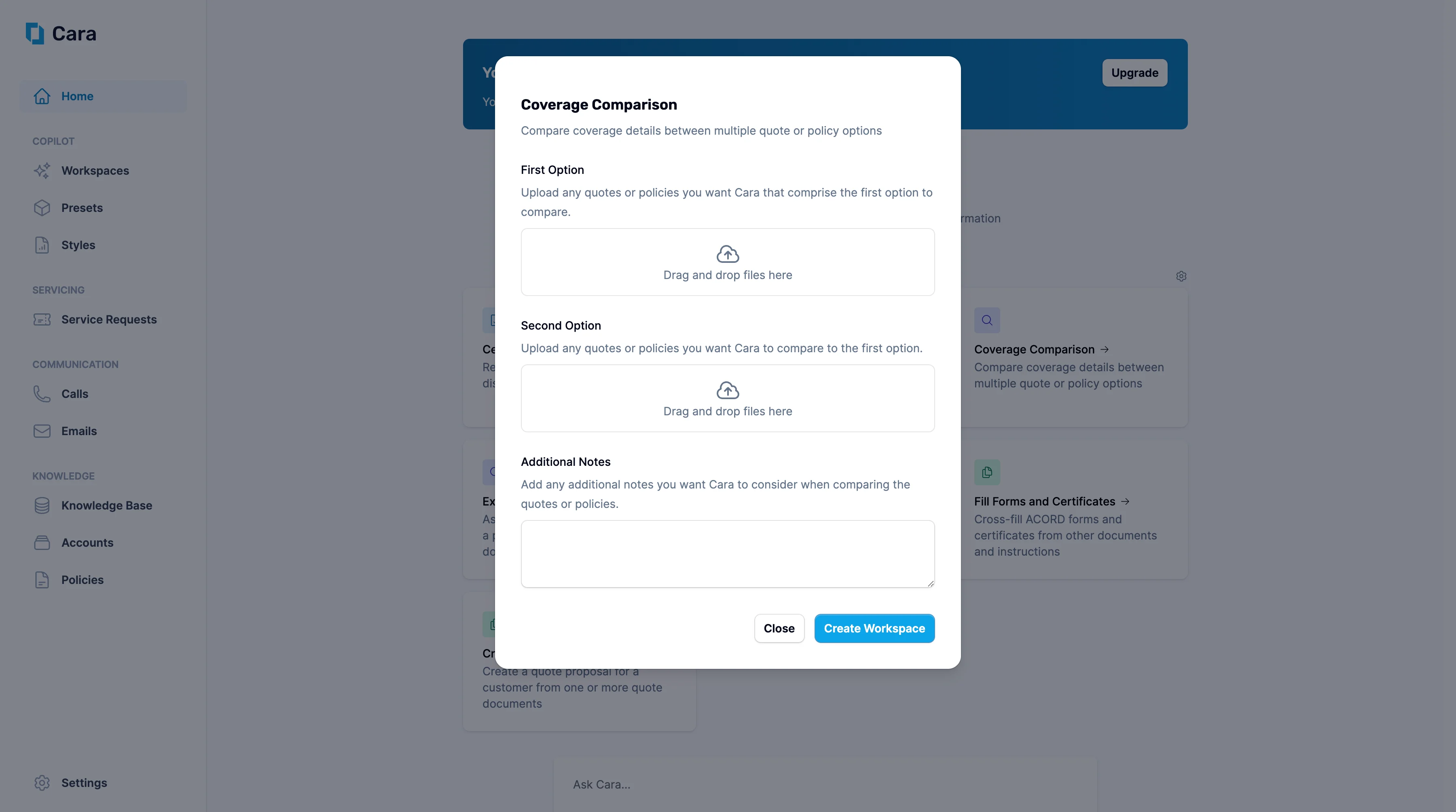 Start by uploading the documents that make up your **First Option**. This can be a single quote or multiple policies you want to evaluate as one combined option.
Cara currently accepts PDF file uploads, although more file types are coming soon.
If applicable, upload the documents for the **Second Option**—again, this can be a single file or a combination of quotes or policies
Although the interface only shows “first option” and “second option,” Cara can handle comparisons across multiple quotes. To do this, simply upload all additional quotes or policies under the “second option” section.
Use the **Additional Notes** section to guide Cara on any specific context or priorities for the comparison. For example, you might want Cara to focus on specific coverages or endorsements in her review.
Once you click **Create Workspace**, Cara will generate a dedicated workspace showing:
* A full audit trail of how the comparison was conducted
* A summary of findings, including premium differences, key coverage variations, and any E\&O considerations
Cara is trained on insurance-specific language and logic and can handle simple like-for-like comparisons (e.g., BOP vs. GL) as well as complex comparisons (e.g., an E\&S GL and Property combo vs. an Admitted BOP)
From here, you have several options, including:
* Ask Cara follow-up questions
* Request another action using the same information (e.g. generate an email summarizing the comparison)
* Create a quote proposal.
Start by uploading the documents that make up your **First Option**. This can be a single quote or multiple policies you want to evaluate as one combined option.
Cara currently accepts PDF file uploads, although more file types are coming soon.
If applicable, upload the documents for the **Second Option**—again, this can be a single file or a combination of quotes or policies
Although the interface only shows “first option” and “second option,” Cara can handle comparisons across multiple quotes. To do this, simply upload all additional quotes or policies under the “second option” section.
Use the **Additional Notes** section to guide Cara on any specific context or priorities for the comparison. For example, you might want Cara to focus on specific coverages or endorsements in her review.
Once you click **Create Workspace**, Cara will generate a dedicated workspace showing:
* A full audit trail of how the comparison was conducted
* A summary of findings, including premium differences, key coverage variations, and any E\&O considerations
Cara is trained on insurance-specific language and logic and can handle simple like-for-like comparisons (e.g., BOP vs. GL) as well as complex comparisons (e.g., an E\&S GL and Property combo vs. an Admitted BOP)
From here, you have several options, including:
* Ask Cara follow-up questions
* Request another action using the same information (e.g. generate an email summarizing the comparison)
* Create a quote proposal.