> ## Documentation Index
> Fetch the complete documentation index at: https://docs.getcara.ai/llms.txt
> Use this file to discover all available pages before exploring further.
# Custom Fillable PDF Forms
> Save carrier and supplemental fillable PDFs in your library once, then have Cara complete them from your quotes, applications, and policies with your saved guidance.
### How it works
 In **Copilot**, open **Library** and go to **Custom Forms**. Upload each **fillable PDF** you use often (for example, a carrier supplemental or state-specific application).
Cara needs a **fillable** PDF—not a scanned or image-only file. For best results, use forms with fewer than about 400 fields and eight pages or fewer.
When you upload, you can optionally add **instructions inside the PDF’s text fields** so Cara learns what belongs in each box. For yes/no or choice fields, select the **defaults** you want when your source documents do not spell out an answer.
Optionally, add **setup guidance** for context that is not obvious from the form itself. For example, how to treat account-wide vs. location-specific questions, or how to read limits and percentages.
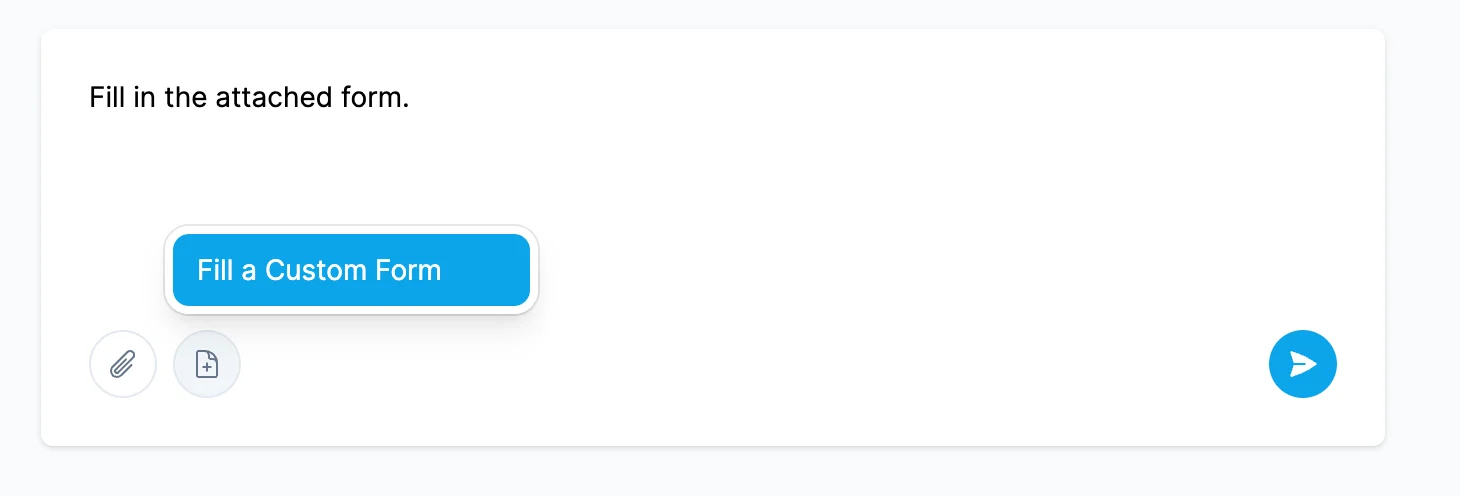
When you start a new workspace or send a message, choose **Fill a Custom Form** (next to the attachment control). In the modal, pick one or more **ready** forms from your library—you can select up to three at a time.
Attach the **documents** Cara should read from (quotes, applications, policies, schedules, or other supporting files). Use your message if you want to steer the process such as which locations, lines of business, or dates matter most.
After you **Create Workspace** with your custom forms selected, Cara fills the forms based on your uploads. You get a normal Copilot workspace: you can review Cara's reasoning, ask follow-ups, or request changes to specific fields.
Completed forms appear in your workspace **Documents** list under **Custom PDF Forms**, where you can open, download, and track versions.
Keeping templates in the library means you do not have to re-explain the same form every time—your setup guidance and field defaults apply whenever that form is used.
From there you can:
* Adjust answers or refresh a form after uploading more documents
* Use the same workspace for related tasks (emails, comparisons, or proposals)
* Add or archive forms in **Library** as your carriers and workflows change
In **Copilot**, open **Library** and go to **Custom Forms**. Upload each **fillable PDF** you use often (for example, a carrier supplemental or state-specific application).
Cara needs a **fillable** PDF—not a scanned or image-only file. For best results, use forms with fewer than about 400 fields and eight pages or fewer.
When you upload, you can optionally add **instructions inside the PDF’s text fields** so Cara learns what belongs in each box. For yes/no or choice fields, select the **defaults** you want when your source documents do not spell out an answer.
Optionally, add **setup guidance** for context that is not obvious from the form itself. For example, how to treat account-wide vs. location-specific questions, or how to read limits and percentages.
When you start a new workspace or send a message, choose **Fill a Custom Form** (next to the attachment control). In the modal, pick one or more **ready** forms from your library—you can select up to three at a time.
Attach the **documents** Cara should read from (quotes, applications, policies, schedules, or other supporting files). Use your message if you want to steer the process such as which locations, lines of business, or dates matter most.
After you **Create Workspace** with your custom forms selected, Cara fills the forms based on your uploads. You get a normal Copilot workspace: you can review Cara's reasoning, ask follow-ups, or request changes to specific fields.
Completed forms appear in your workspace **Documents** list under **Custom PDF Forms**, where you can open, download, and track versions.
Keeping templates in the library means you do not have to re-explain the same form every time—your setup guidance and field defaults apply whenever that form is used.
From there you can:
* Adjust answers or refresh a form after uploading more documents
* Use the same workspace for related tasks (emails, comparisons, or proposals)
* Add or archive forms in **Library** as your carriers and workflows change