> ## Documentation Index
> Fetch the complete documentation index at: https://docs.getcara.ai/llms.txt
> Use this file to discover all available pages before exploring further.
# Styles
> Generate documents with your branding, style, and cover page
Cara can apply specific styling to PDF documents that she generates — including options that match your existing branding. You can choose from built-in styles or create your own custom style.
### Built-in Styles
Whenever Cara generates a document (e.g. a quote proposal), you can choose from a set of built-in styles to change the look and feel of the output.
To apply a style, click **Render** in the document pane and select from the available options. Cara will automatically reformat the document using the selected style.
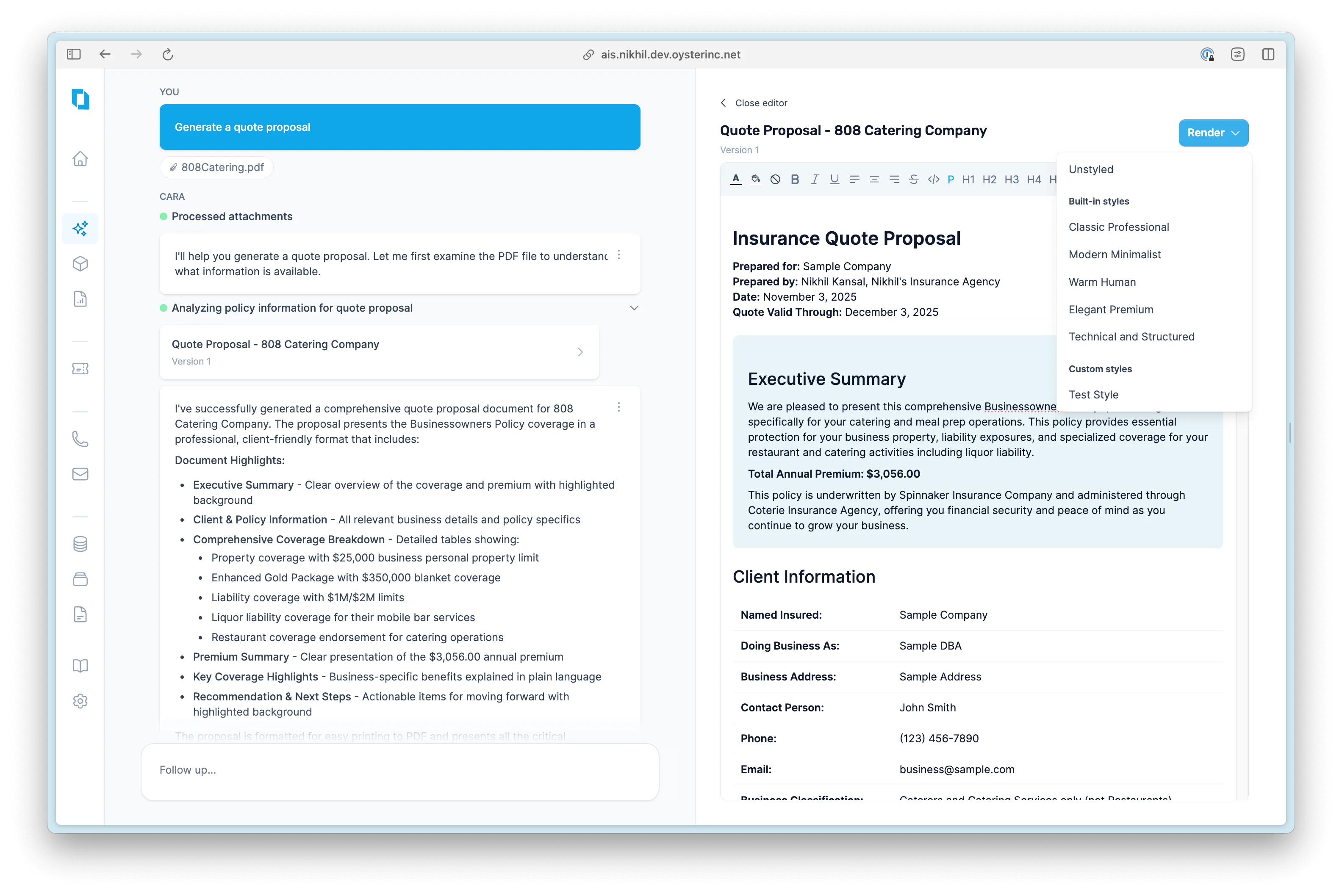 Available built-in styles include:
* Classic Professional
* Modern Minimalist
* Warm Human
* Elegant Premium
* Technical and Structured
If you've created a custom style, it will also appear in this list for easy selection.
### Custom Styles
To create your own document style:
1. Navigate to the **Styles** tab in the left-hand menu
2. You’ll see any existing styles you’ve saved
3. Click **Create Style** to get started — Cara will walk you through the setup
Available built-in styles include:
* Classic Professional
* Modern Minimalist
* Warm Human
* Elegant Premium
* Technical and Structured
If you've created a custom style, it will also appear in this list for easy selection.
### Custom Styles
To create your own document style:
1. Navigate to the **Styles** tab in the left-hand menu
2. You’ll see any existing styles you’ve saved
3. Click **Create Style** to get started — Cara will walk you through the setup
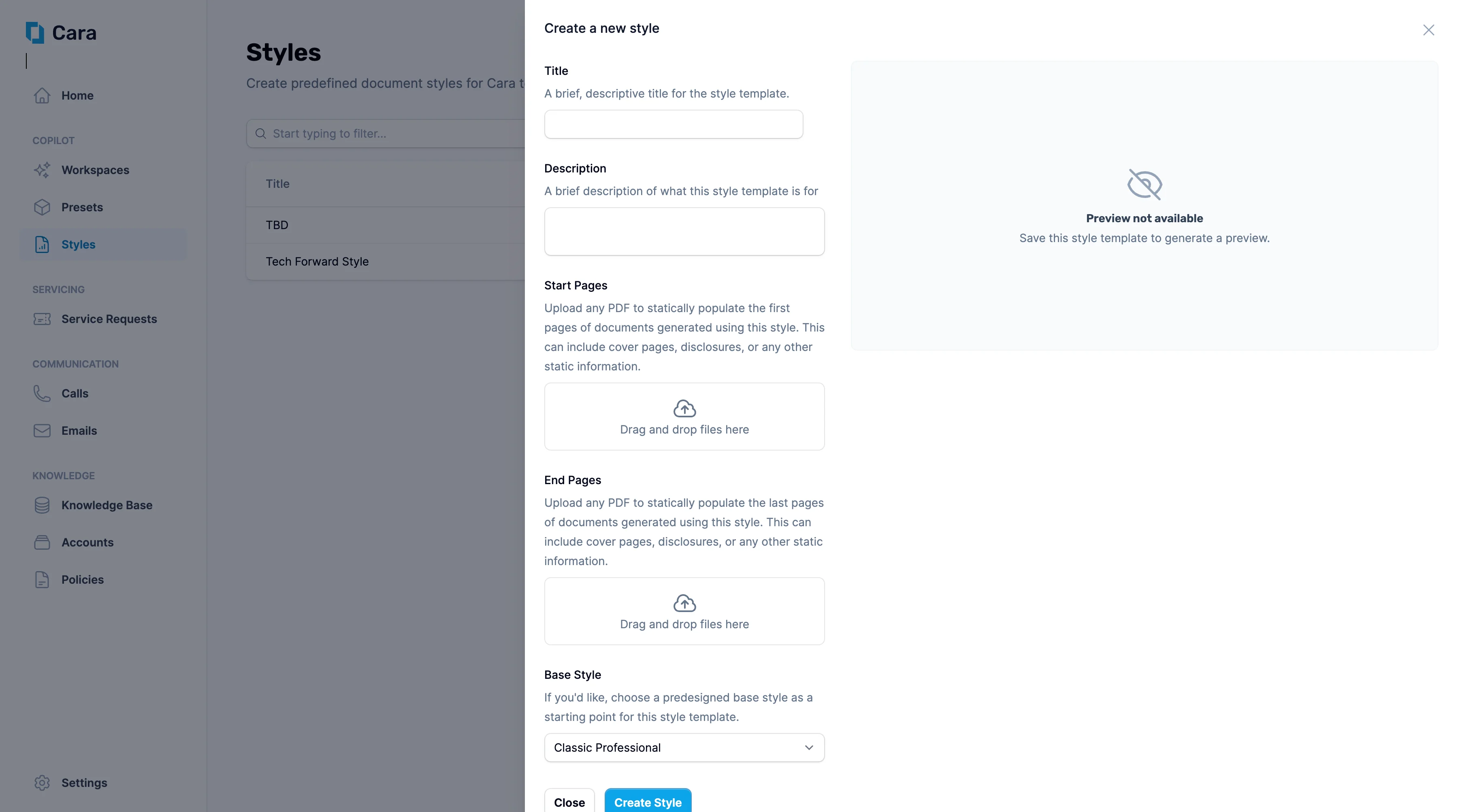 Here’s what you’ll be asked to provide:
* **Title:** A clear name to identify the style
* **Description**: A short summary of what the style is used for
* **Start Pages** (optional): Upload a PDF to appear at the start of every document using this style — such as a branded cover page, welcome message, or disclosures
* **End Pages** (optional): Upload a PDF to appear at the end — such as legal disclaimers or company terms
* **Headers and Footers** (optional): Specify content to place in the headers and footers of each page (excluding the start and end pages previously specified). See more details below.
* **Base Style** (optional): Select a predefined layout as a starting point
Once you’ve completed these fields, click **Create Style**. Cara will generate the style and save it to your library for future use. You’ll be able to apply it to any document going forward.
### Headers and Footers
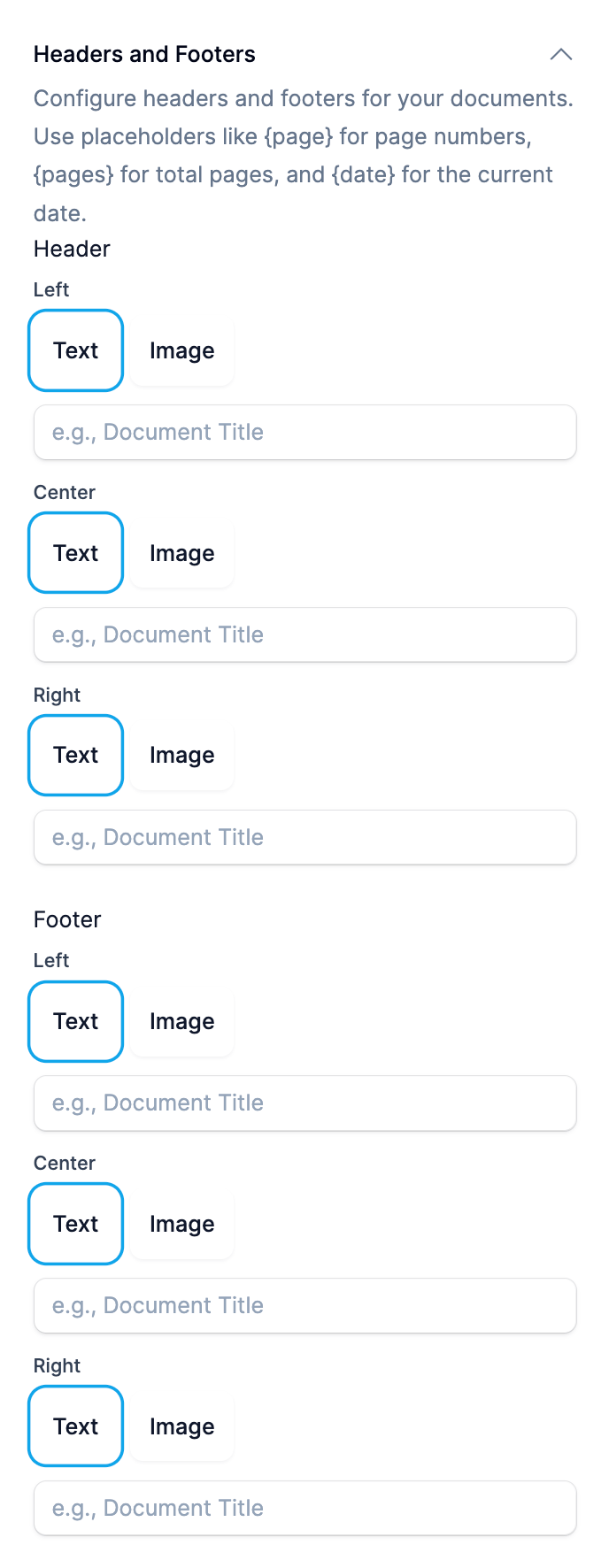
You can configure a style to populate certain information in the headers and footers. Cara defines 6 distinct regions, which can be independently customized:
* Header Left
* Header Center
* Header Right
* Footer Left
* Footer Center
* Footer Right
In each of these sections, you can choose to include "Text" or an "Image" by selecting the respective option.
Here’s what you’ll be asked to provide:
* **Title:** A clear name to identify the style
* **Description**: A short summary of what the style is used for
* **Start Pages** (optional): Upload a PDF to appear at the start of every document using this style — such as a branded cover page, welcome message, or disclosures
* **End Pages** (optional): Upload a PDF to appear at the end — such as legal disclaimers or company terms
* **Headers and Footers** (optional): Specify content to place in the headers and footers of each page (excluding the start and end pages previously specified). See more details below.
* **Base Style** (optional): Select a predefined layout as a starting point
Once you’ve completed these fields, click **Create Style**. Cara will generate the style and save it to your library for future use. You’ll be able to apply it to any document going forward.
### Headers and Footers
You can configure a style to populate certain information in the headers and footers. Cara defines 6 distinct regions, which can be independently customized:
* Header Left
* Header Center
* Header Right
* Footer Left
* Footer Center
* Footer Right
In each of these sections, you can choose to include "Text" or an "Image" by selecting the respective option.
 #### Text content
You can specify two types of text content of a header or footer section:
* **Static content**: This is fixed text that is always populated as specified. This could be "Quote Proposal" or the name of your agency ("My Agency, LLC.")
* **Dynamic content**: There are placeholders that are replaced with dynamic content when the document is rendered. Cara supports three types of placeholders:
* `{page}`: Cara will replace any instance of the string `{page}` with the current page number (not including static start and end pages).
* `{pages}`: Cara will replace any instance of the string `{pages}` with the total number of pages (not including static start and end pages).
* `{date}`: Cara will replace any instance of the string `{date}` with the current date in `MM/DD/YYYY` format.
You can mix these and specify content like `Page {page} of {pages}`, which will render like `Page 1 of 6`.
#### Image content
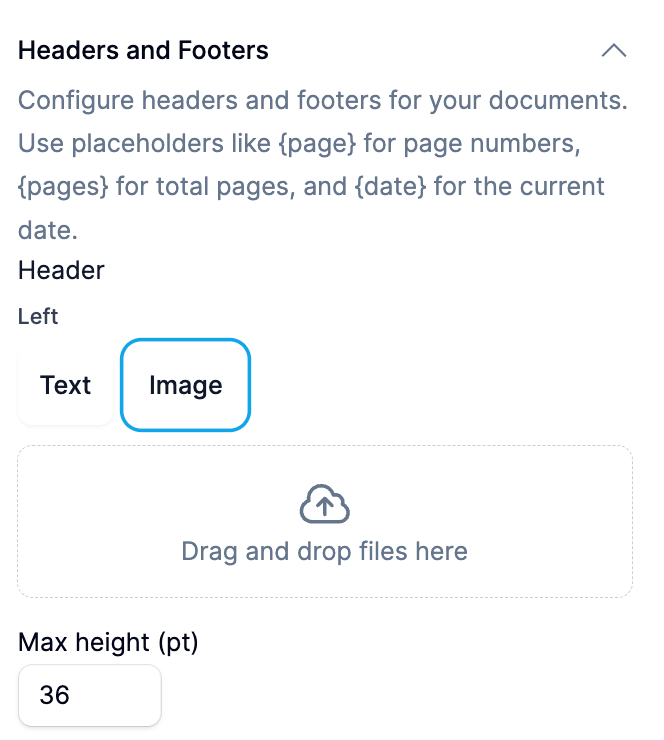
You can upload an image to any of the header and footer sections. Cara will automatically resize the image, and give you an option to specify the height of the image. Simply drag-and-drop a PNG file (max 8MB) and save the style to see a preview of the generated document.
#### Text content
You can specify two types of text content of a header or footer section:
* **Static content**: This is fixed text that is always populated as specified. This could be "Quote Proposal" or the name of your agency ("My Agency, LLC.")
* **Dynamic content**: There are placeholders that are replaced with dynamic content when the document is rendered. Cara supports three types of placeholders:
* `{page}`: Cara will replace any instance of the string `{page}` with the current page number (not including static start and end pages).
* `{pages}`: Cara will replace any instance of the string `{pages}` with the total number of pages (not including static start and end pages).
* `{date}`: Cara will replace any instance of the string `{date}` with the current date in `MM/DD/YYYY` format.
You can mix these and specify content like `Page {page} of {pages}`, which will render like `Page 1 of 6`.
#### Image content
You can upload an image to any of the header and footer sections. Cara will automatically resize the image, and give you an option to specify the height of the image. Simply drag-and-drop a PNG file (max 8MB) and save the style to see a preview of the generated document.