> ## Documentation Index
> Fetch the complete documentation index at: https://docs.getcara.ai/llms.txt
> Use this file to discover all available pages before exploring further.
# Get Started
> Start using Copilot with Presets or by asking Cara directly
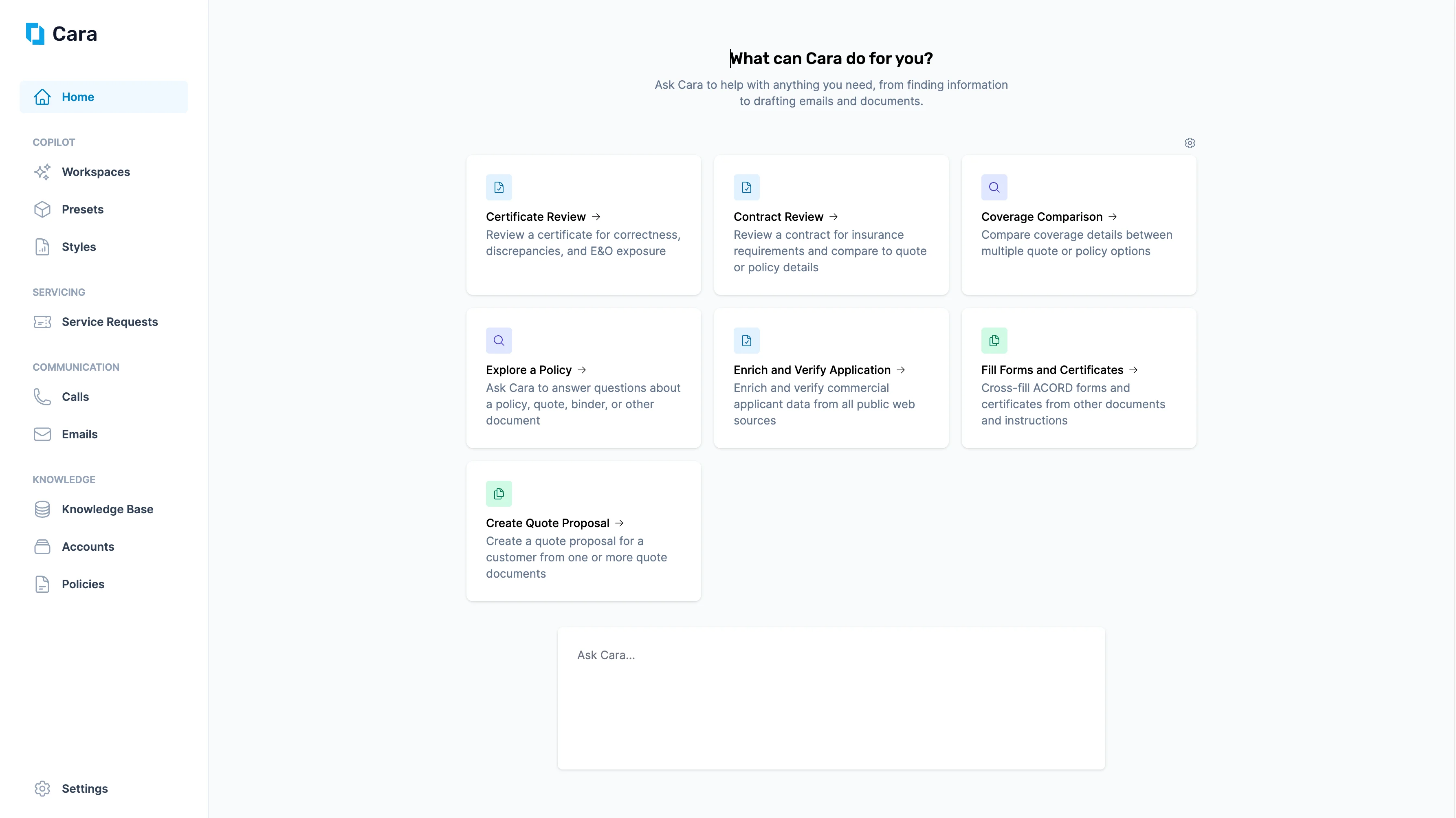
The easiest way to get started with Copilot is by selecting one of the Preset buttons on the homepage to launch a workflow. You’ll then be prompted to provide documents or information relevant to the specific task.
Reminder: A Preset is a guided, AI workflow template designed to streamline common insurance servicing tasks; available as prebuilt and customizable versions
 ## Prebuilt Presets
Cara offers a range of prebuilt Presets designed specifically for the most common servicing needs of insurance agencies.
To explore the prebuilt Presets, choose a guide from the list below.
Compare coverage details across multiple quotes or policy options.
Generate a client-ready quote proposal from one or more quote documents.
Ask questions, review exclusions, or get a full coverage summary across one or more policy documents.
Automatically populate ACORD forms and certificates with unstructured information.
Review certificates for accuracy, discrepancies, and E\&O exposure.
Analyze contracts for insurance requirements and compare against quote or policy details.
Identify gaps and cross-sell opportunities by auditing a client's current coverage against their real-world exposure.
Match a submission to eligible carriers in your knowledge base with class code verification and placement reasoning.
Generate a professional, client-ready risk management report that positions your agency as a strategic advisor.
Build or verify a complete Statement of Values for any property portfolio — from a full document set or a list of addresses.
Understand exactly what a policy covers for an active claim and what needs to happen next.
Summarize a client's claims history and generate a professional Risk Mitigation Statement for underwriter submission.
Verify that what's on the application matches reality before the submission goes to market.
## Custom Presets
[Custom presets ](/copilot/custompresets)allow you to leverage Cara's capabilities to automate tasks and workflows specific to your agency. Once you've created a custom preset, you can add a button for it on the homepage by clicking the gear icon. Once added, you'll be able to quickly access this preset.
## Ask Cara Directly
Alternatively, you can [**Ask Cara Directly**](/copilot/askcara), using the free-text input bar at the bottom of the page. Just type your question or instruction, and Cara will respond instantly.
## Prebuilt Presets
Cara offers a range of prebuilt Presets designed specifically for the most common servicing needs of insurance agencies.
To explore the prebuilt Presets, choose a guide from the list below.
Compare coverage details across multiple quotes or policy options.
Generate a client-ready quote proposal from one or more quote documents.
Ask questions, review exclusions, or get a full coverage summary across one or more policy documents.
Automatically populate ACORD forms and certificates with unstructured information.
Review certificates for accuracy, discrepancies, and E\&O exposure.
Analyze contracts for insurance requirements and compare against quote or policy details.
Identify gaps and cross-sell opportunities by auditing a client's current coverage against their real-world exposure.
Match a submission to eligible carriers in your knowledge base with class code verification and placement reasoning.
Generate a professional, client-ready risk management report that positions your agency as a strategic advisor.
Build or verify a complete Statement of Values for any property portfolio — from a full document set or a list of addresses.
Understand exactly what a policy covers for an active claim and what needs to happen next.
Summarize a client's claims history and generate a professional Risk Mitigation Statement for underwriter submission.
Verify that what's on the application matches reality before the submission goes to market.
## Custom Presets
[Custom presets ](/copilot/custompresets)allow you to leverage Cara's capabilities to automate tasks and workflows specific to your agency. Once you've created a custom preset, you can add a button for it on the homepage by clicking the gear icon. Once added, you'll be able to quickly access this preset.
## Ask Cara Directly
Alternatively, you can [**Ask Cara Directly**](/copilot/askcara), using the free-text input bar at the bottom of the page. Just type your question or instruction, and Cara will respond instantly.
.png?fit=max&auto=format&n=PY1gFhJpMuuYvPFQ&q=85&s=126354c21fdd4e8f14783ec7eef884b6) ## Workspaces
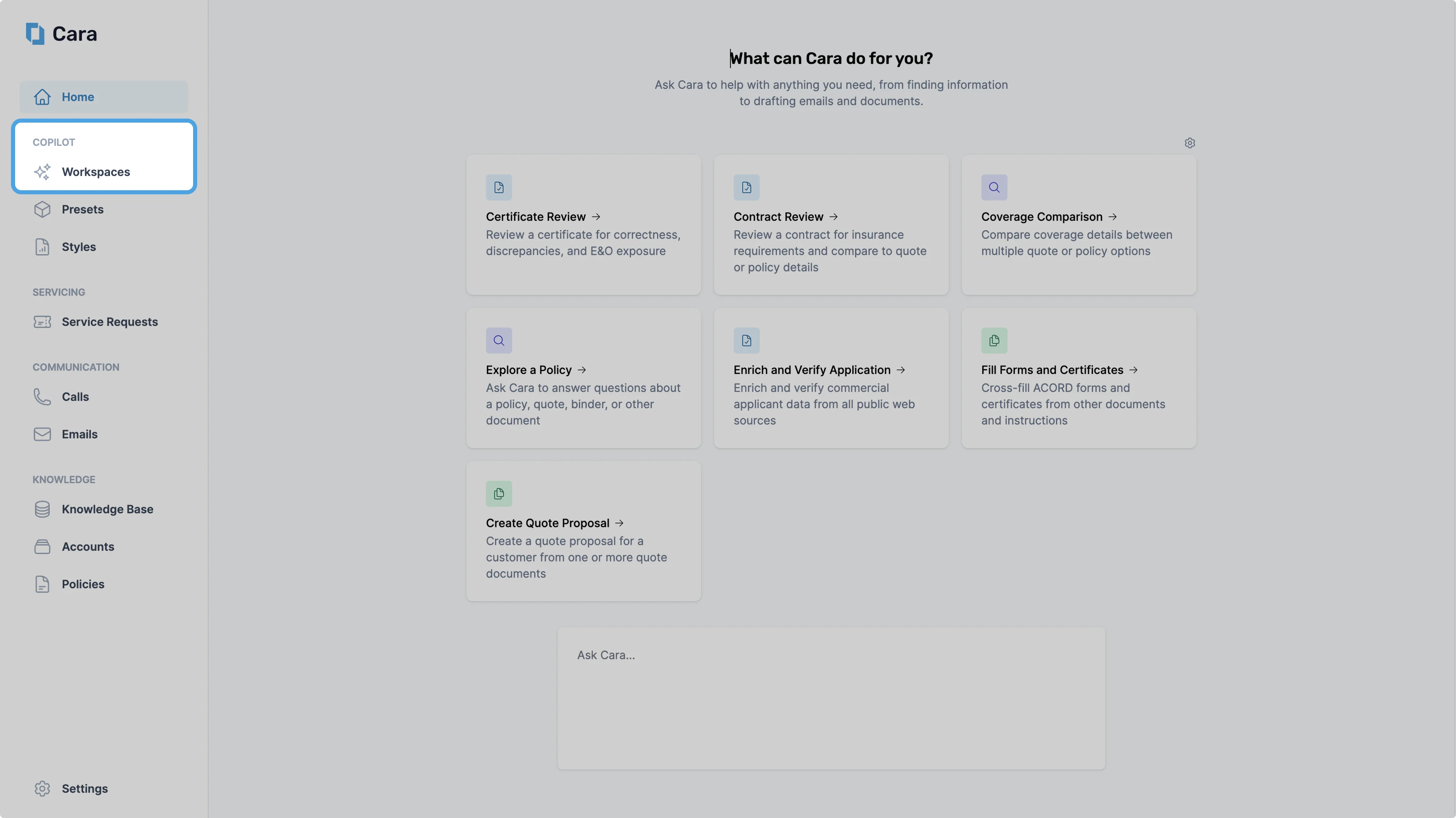
No matter how you start a workflow in Copilot, a Workspace is created for each session. You can view and manage all your active Workspaces by navigating to **Copilot > Workspace** in the left-hand sidebar.
## Workspaces
No matter how you start a workflow in Copilot, a Workspace is created for each session. You can view and manage all your active Workspaces by navigating to **Copilot > Workspace** in the left-hand sidebar.
 This view displays all workspaces across every Preset, showing each workspace’s title, status, client user, and last updated date.
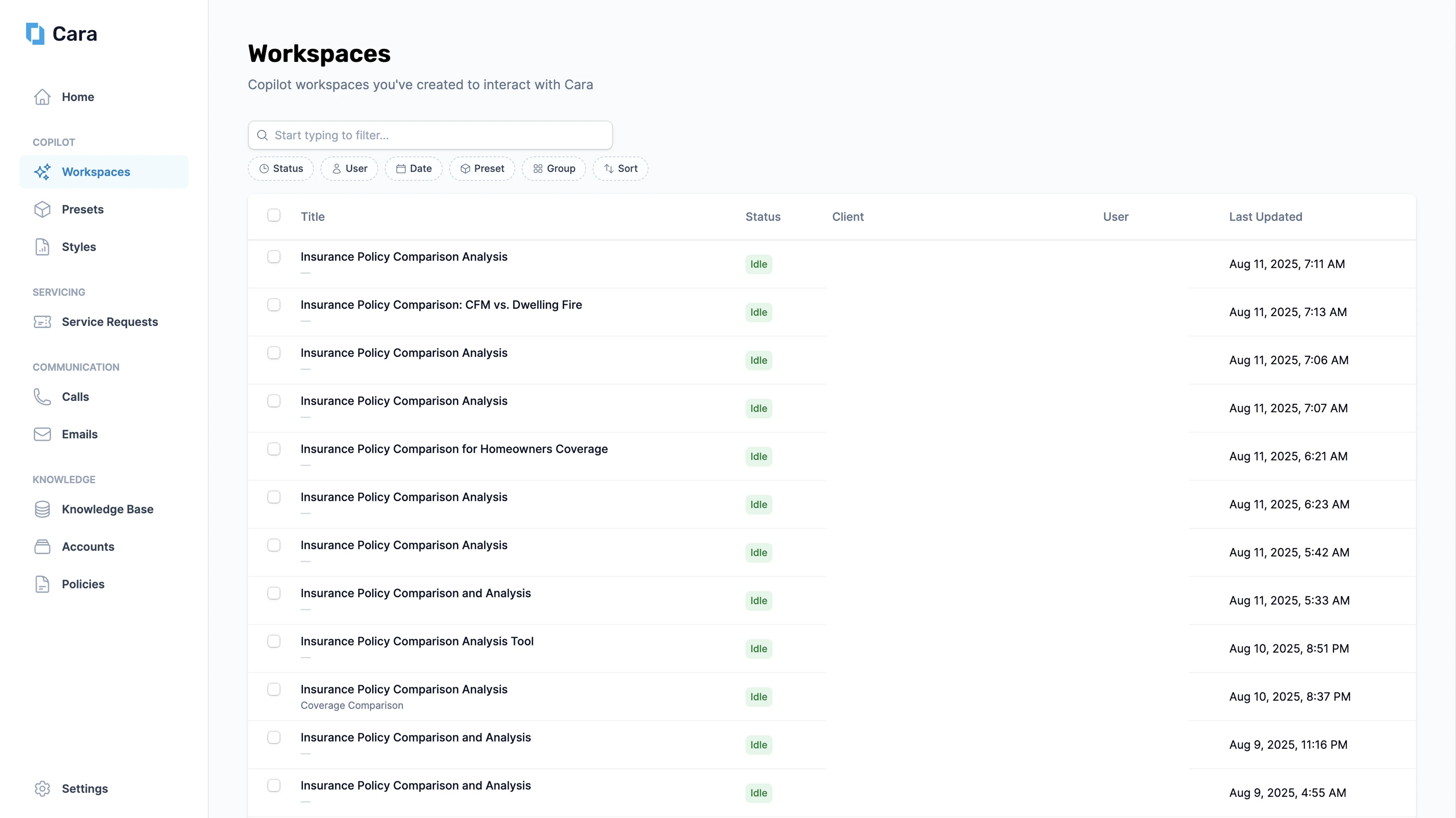 You can refine your view by:
* Status
* Idle = Cara has completed the task
* Waiting = Cara is waiting for your input
* Working = Cara is working on the task
* User
* Date
* Preset
You can also group or sort workspaces, and use the **"Start typing to filter"** search bar to quickly find a specific workspace.
You can refine your view by:
* Status
* Idle = Cara has completed the task
* Waiting = Cara is waiting for your input
* Working = Cara is working on the task
* User
* Date
* Preset
You can also group or sort workspaces, and use the **"Start typing to filter"** search bar to quickly find a specific workspace.
.png?fit=max&auto=format&n=PY1gFhJpMuuYvPFQ&q=85&s=b5b534cd57ca3388498c753e906da2a8 "Workspace Pn") ### Inside a workspace New
Every workspace opens on three tabs — Cara's conversation, the tool runs she executes, and the files she produces. You can flip between them at any time without losing state.
The conversation between you and Cara — prompts, follow-ups, and Cara's narrative reasoning. Use this tab to steer the task in natural language.
A step-by-step view of every tool Cara ran to complete the task — knowledge-graph searches, integration reads and writes, [code execution](/copilot/codeexecution), document generation. Each step shows inputs, outputs, and timing so you can audit exactly how Cara arrived at a result.
All the files Cara produced or attached in this workspace — generated PDFs, ACORD forms, exported spreadsheets. Download any artifact, or ask Cara to modify it in place.
Within each workspace, you can follow up with Cara to request changes, provide additional context, and continue working on the task. You can also chain related tasks:
* Generate an ACORD form → Upload to AMS
* Compare quotes → Draft an email to the customer
* Pull current customer policy information → Compare to renewal quote → Draft an email to the customer
### Visibility New
Every workspace has a visibility scope that controls who else can see it:
| Scope | Who can see it |
| ----------- | --------------------------------------------------------------------------------- |
| **Agency** | The default — everyone at your agency can view and follow up. |
| **Team** | Only members of a named Team. Useful for lines-of-business or pod-based staffing. |
| **Private** | Only you. Useful for drafting sensitive client communication or exploratory work. |
You can change visibility from the workspace header at any time. Team and Private are enforced consistently across the workspace list, search, and analytics.
### Desktop notifications New
Cara can send a desktop notification the moment a workspace transitions from **Working** to **Idle** so you don't have to babysit long-running jobs. Enable notifications from your user preferences.
Desktop notifications require the workspace tab to remain open in a browser window (it can be in the background). Closing the tab suspends the workspace's notifications.
### Unarchive New
Archived workspaces are no longer terminal. From the workspace list, filter to **Archived**, open the three-dot menu on any row, and select **Unarchive** to restore it to your active list.
### Inside a workspace New
Every workspace opens on three tabs — Cara's conversation, the tool runs she executes, and the files she produces. You can flip between them at any time without losing state.
The conversation between you and Cara — prompts, follow-ups, and Cara's narrative reasoning. Use this tab to steer the task in natural language.
A step-by-step view of every tool Cara ran to complete the task — knowledge-graph searches, integration reads and writes, [code execution](/copilot/codeexecution), document generation. Each step shows inputs, outputs, and timing so you can audit exactly how Cara arrived at a result.
All the files Cara produced or attached in this workspace — generated PDFs, ACORD forms, exported spreadsheets. Download any artifact, or ask Cara to modify it in place.
Within each workspace, you can follow up with Cara to request changes, provide additional context, and continue working on the task. You can also chain related tasks:
* Generate an ACORD form → Upload to AMS
* Compare quotes → Draft an email to the customer
* Pull current customer policy information → Compare to renewal quote → Draft an email to the customer
### Visibility New
Every workspace has a visibility scope that controls who else can see it:
| Scope | Who can see it |
| ----------- | --------------------------------------------------------------------------------- |
| **Agency** | The default — everyone at your agency can view and follow up. |
| **Team** | Only members of a named Team. Useful for lines-of-business or pod-based staffing. |
| **Private** | Only you. Useful for drafting sensitive client communication or exploratory work. |
You can change visibility from the workspace header at any time. Team and Private are enforced consistently across the workspace list, search, and analytics.
### Desktop notifications New
Cara can send a desktop notification the moment a workspace transitions from **Working** to **Idle** so you don't have to babysit long-running jobs. Enable notifications from your user preferences.
Desktop notifications require the workspace tab to remain open in a browser window (it can be in the background). Closing the tab suspends the workspace's notifications.
### Unarchive New
Archived workspaces are no longer terminal. From the workspace list, filter to **Archived**, open the three-dot menu on any row, and select **Unarchive** to restore it to your active list.