> ## Documentation Index
> Fetch the complete documentation index at: https://docs.getcara.ai/llms.txt
> Use this file to discover all available pages before exploring further.
# HubSpot
> Connect your HubSpot CRM to Cara
### Integration Capabilities
The integration capabilities are determined by HubSpot API endpoints.
| | **Read** | **Write** |
| ------------ | -------- | --------- |
| **Accounts** | ✅ | ✅ |
| **Contacts** | ✅ | ✅ |
| **Calls** | ❌ | ✅ |
| **Notes** | ❌ | ✅ |
| **Tasks** | ❌ | ✅ |
Account-level actions require the **Sync Accounts** toggle to be enabled — see the setup step below.
### Connect HubSpot to Cara
Create a new [Private App](https://developers.hubspot.com/docs/guides/apps/private-apps/overview) and generate a Personal Access Token (PAT) for Cara in your HubSpot CRM. You'll need to ensure the following scopes are selected for the integration to work correctly:
* `crm.objects.contacts.read`
* `crm.objects.contacts.write`
* `crm.objects.deals.read`
* `crm.objects.deals.write`
* `crm.schemas.contacts.read`
* `crm.schemas.contacts.write`
* `crm.schemas.deals.read`
* `crm.schemas.deals.write`
* `tickets`
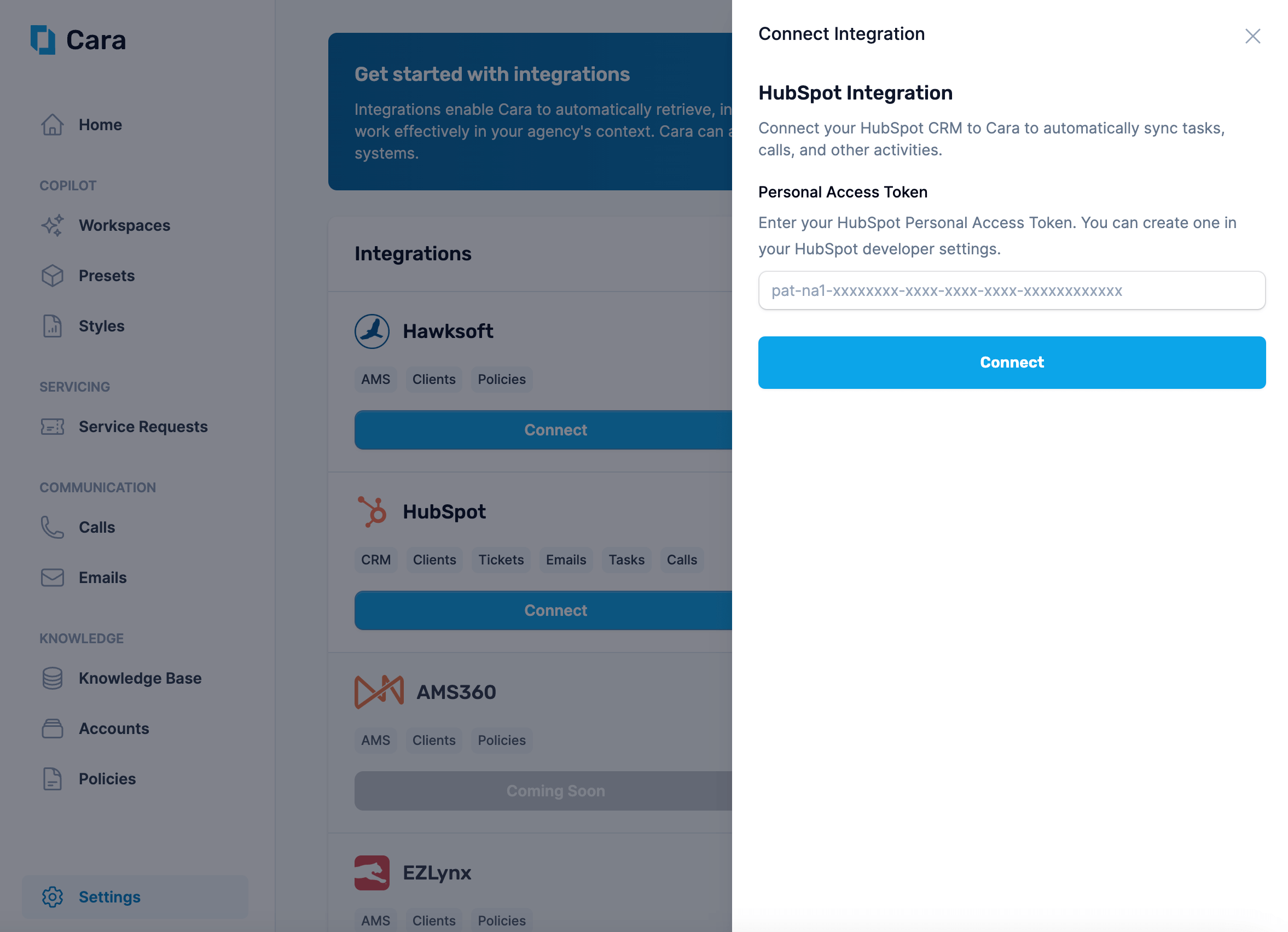
Navigate to the [Integrations](https://app.getcara.ai/app/settings/integrations) tab in Cara and click on the "[Connect](https://app.getcara.ai/app/settings/integrations/connect/CRM_HUBSPOT)" button on the "HubSpot" tile. Enter your **Personal Access Token here** and click **Connect**.
 New Toggle **Sync Accounts** if you want Cara to read and write HubSpot **companies / accounts** in addition to contacts. When the toggle is off, Cara treats HubSpot as a contact-only CRM and skips account-level lookups and writes — useful for agencies who manage account data elsewhere.
The toggle is respected everywhere Cara makes decisions about HubSpot: `getIntegrationActions`, Voice AI customer lookups, and Copilot on-demand writes.
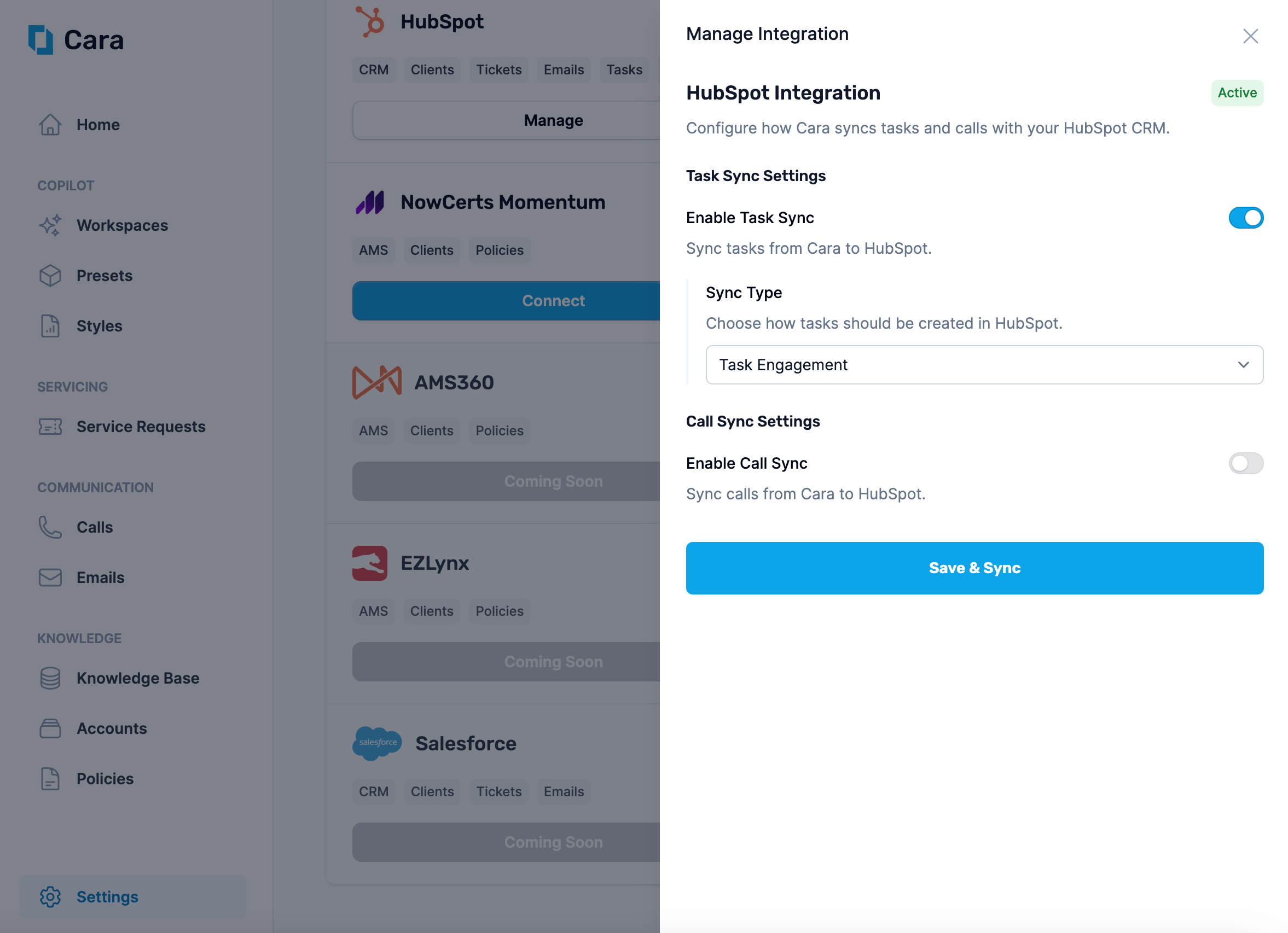
To have Cara write tasks to your CRM, you must toggle **Enable Task Sync** and configure how you want tasks to be synced.
**Sync as Engagement**
Cara can write tasks as engagements on contacts. To do so, choose "Task Engagement" for the "Sync Type".
New Toggle **Sync Accounts** if you want Cara to read and write HubSpot **companies / accounts** in addition to contacts. When the toggle is off, Cara treats HubSpot as a contact-only CRM and skips account-level lookups and writes — useful for agencies who manage account data elsewhere.
The toggle is respected everywhere Cara makes decisions about HubSpot: `getIntegrationActions`, Voice AI customer lookups, and Copilot on-demand writes.
To have Cara write tasks to your CRM, you must toggle **Enable Task Sync** and configure how you want tasks to be synced.
**Sync as Engagement**
Cara can write tasks as engagements on contacts. To do so, choose "Task Engagement" for the "Sync Type".
 **Sync as Ticket**
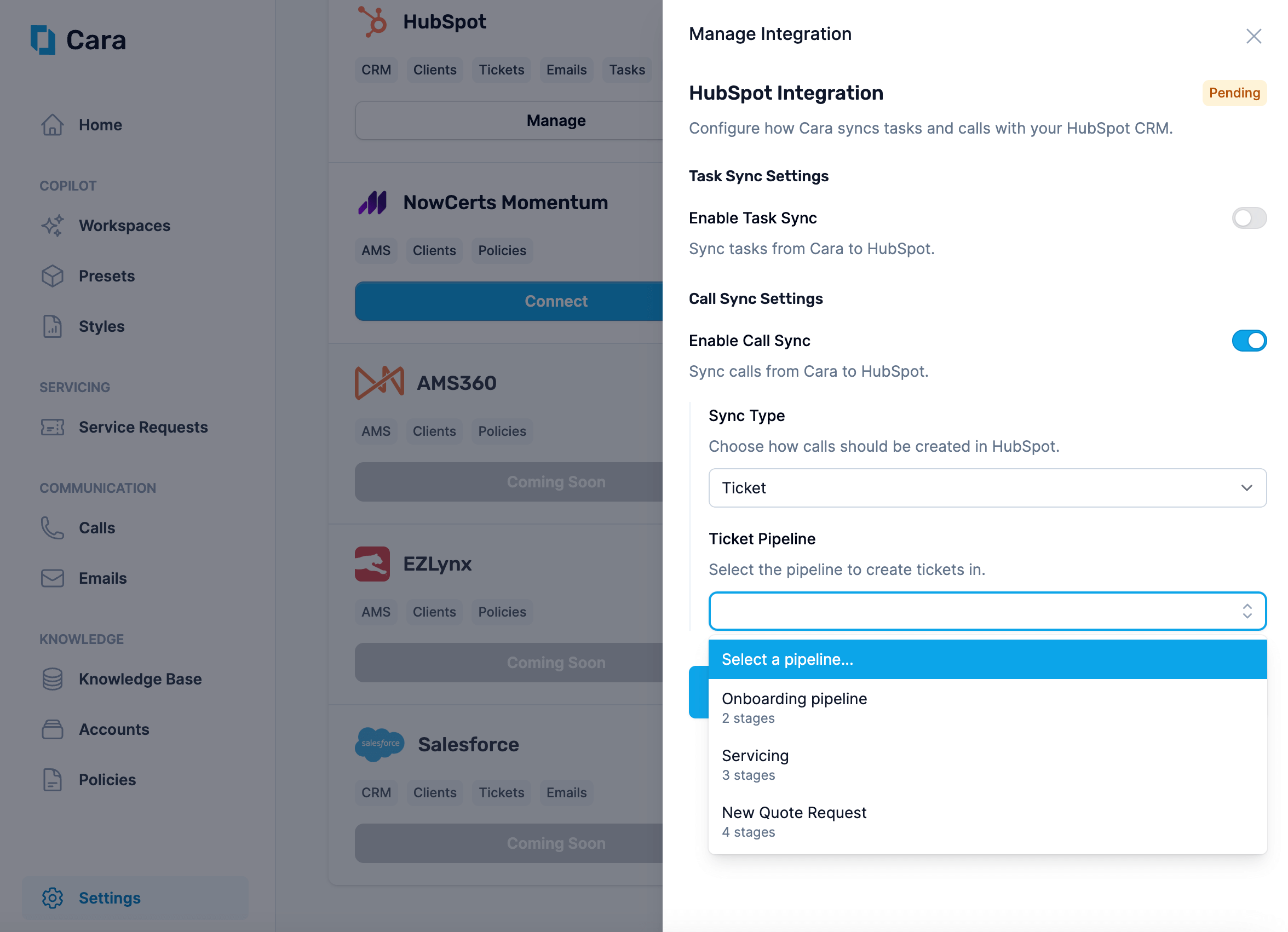
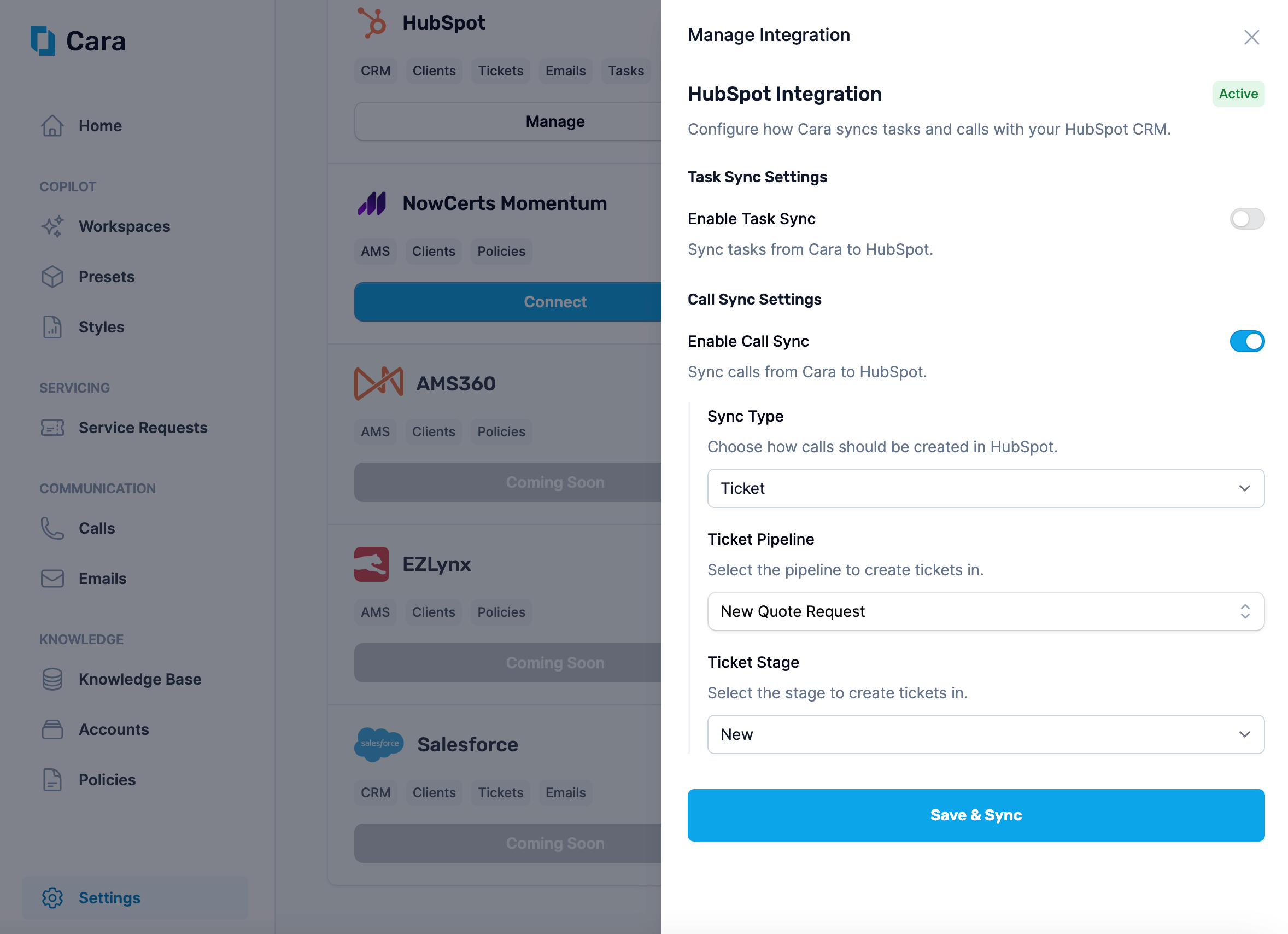
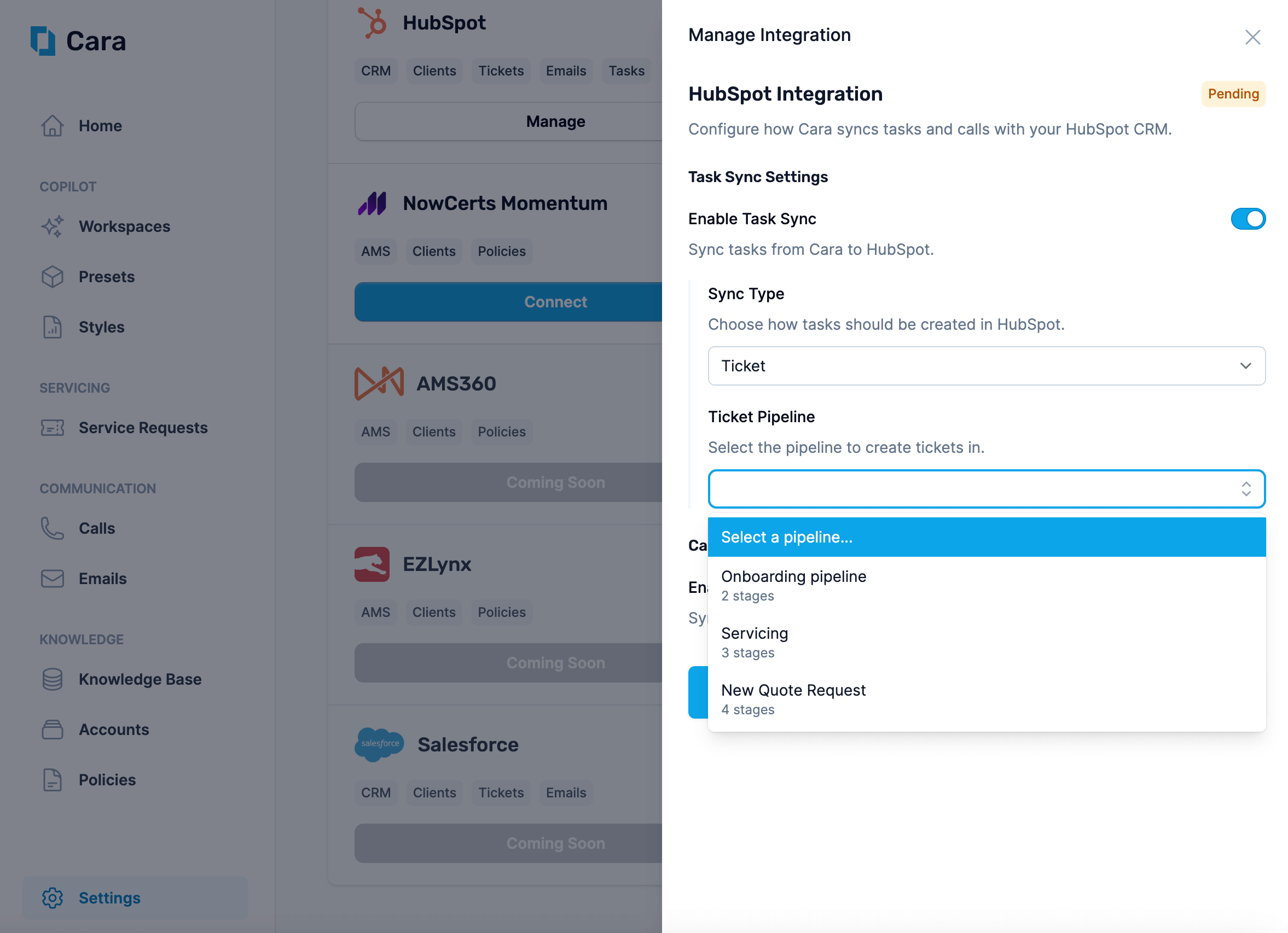
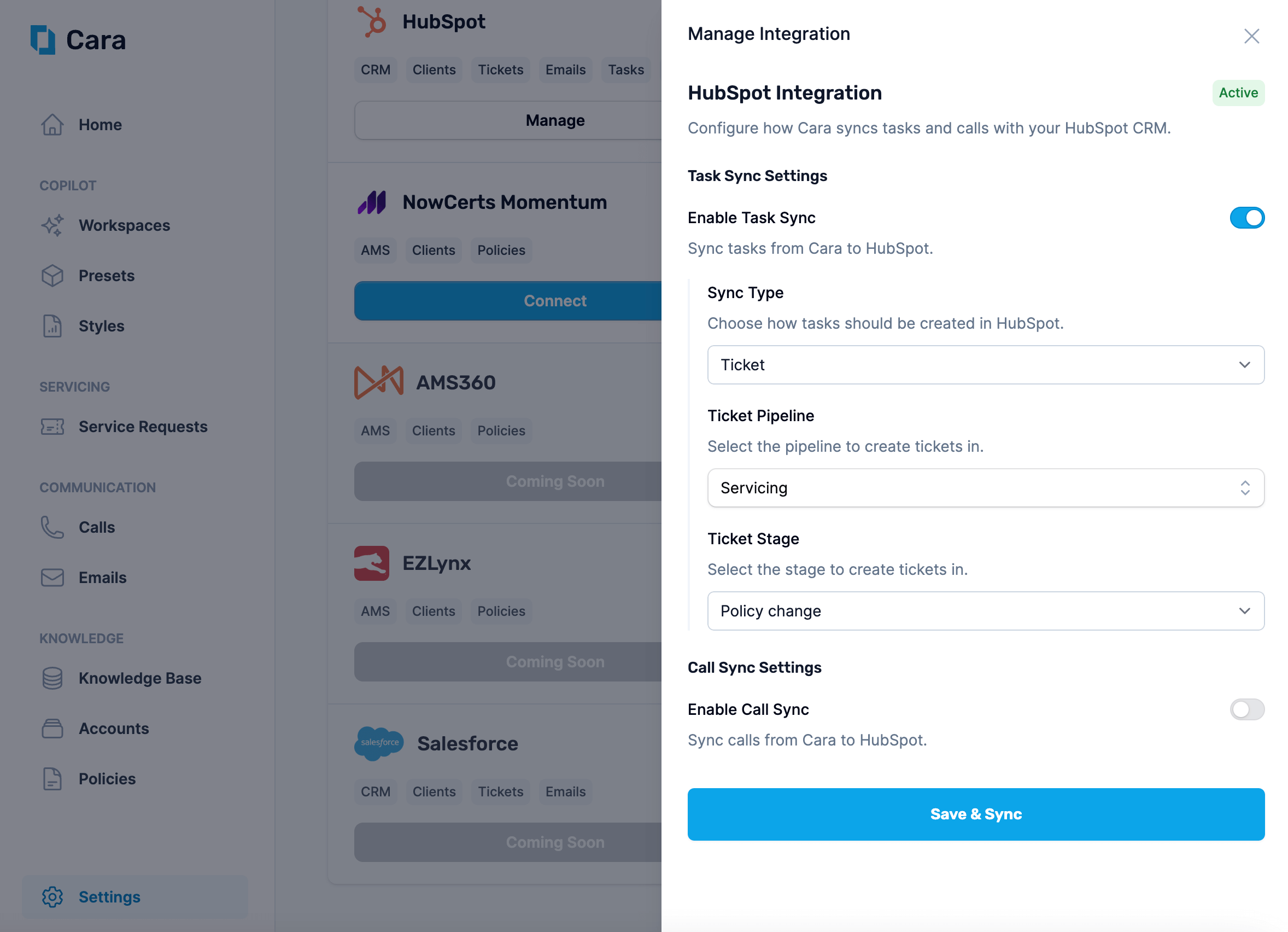
Cara can write tasks as tickets in a particular pipeline. To do so, choose "Ticket" for the "Sync Type", and then select the "Pipeline" and "Stage" you'd like tickets to be created in.
**Sync as Ticket**
Cara can write tasks as tickets in a particular pipeline. To do so, choose "Ticket" for the "Sync Type", and then select the "Pipeline" and "Stage" you'd like tickets to be created in.
 To have Cara write calls to your CRM, you must toggle **Enable Call Sync** and configure how you want tasks to be synced.
**Sync as Engagement**
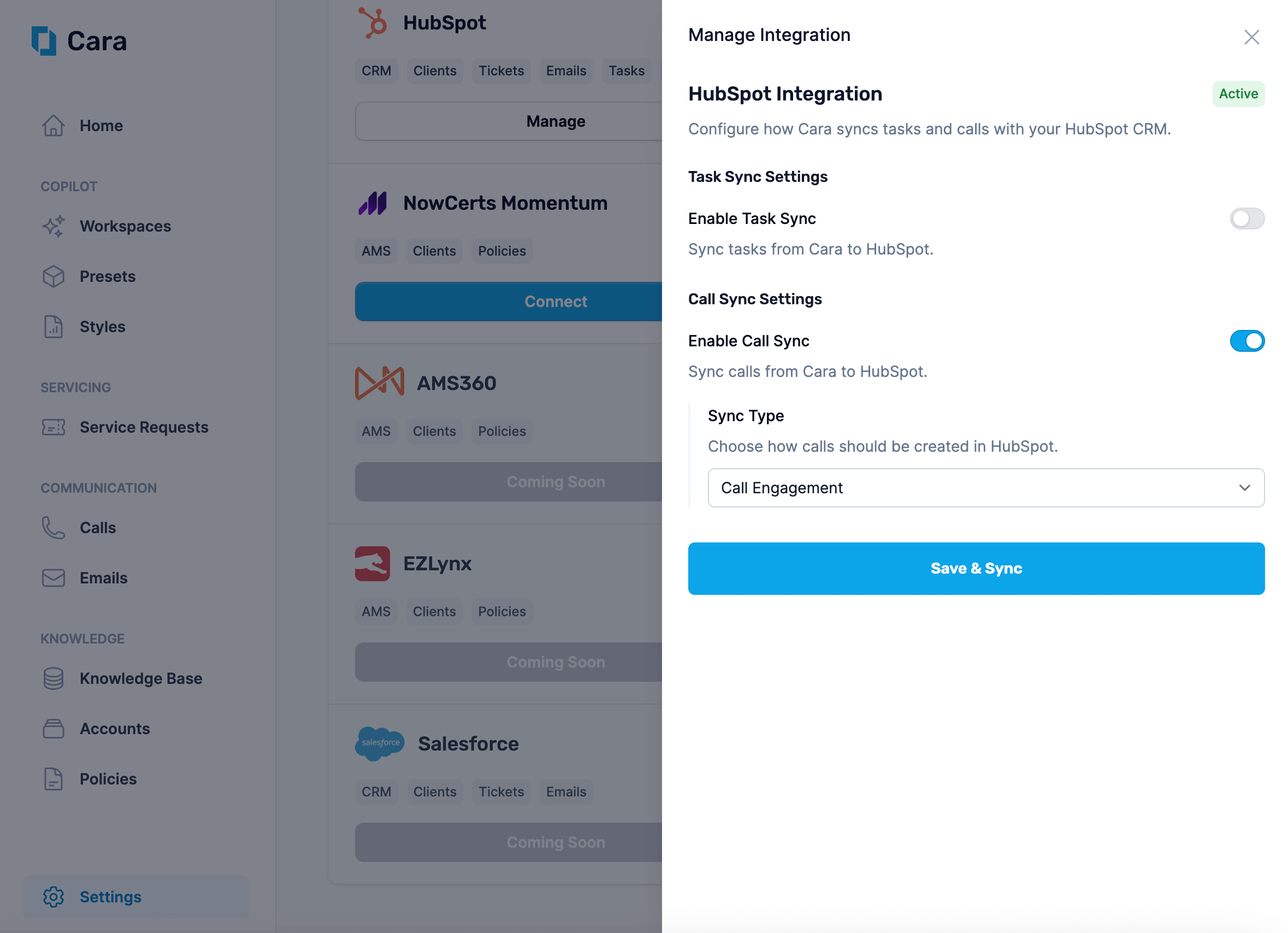
Cara can write calls as engagements on contacts. To do so, choose "Call Engagement" for the "Sync Type". This will show up as a call (including summary and recording) on the contact record.
Cara can also write calls as notes on the contact. To do so, choose "Note Engagement" for the "Sync Type". This will include just the summary and transcript as a note on the contact record.
To have Cara write calls to your CRM, you must toggle **Enable Call Sync** and configure how you want tasks to be synced.
**Sync as Engagement**
Cara can write calls as engagements on contacts. To do so, choose "Call Engagement" for the "Sync Type". This will show up as a call (including summary and recording) on the contact record.
Cara can also write calls as notes on the contact. To do so, choose "Note Engagement" for the "Sync Type". This will include just the summary and transcript as a note on the contact record.
 **Sync as Ticket**
Cara can write calls as tickets in a particular pipeline. To do so, choose "Ticket" for the "Sync Type", and then select the "Pipeline" and "Stage" you'd like tickets to be created in.
**Sync as Ticket**
Cara can write calls as tickets in a particular pipeline. To do so, choose "Ticket" for the "Sync Type", and then select the "Pipeline" and "Stage" you'd like tickets to be created in.