> ## Documentation Index
> Fetch the complete documentation index at: https://docs.getcara.ai/llms.txt
> Use this file to discover all available pages before exploring further.
# Zapier
> Trigger Zaps in Zapier from Cara
### Integration Capabilities
Cara can be configured to trigger zaps on certain **write** actions.
Cara does not ingest data from Zapier, which means that the Zap is responsible for doing the appropriate action based on the data written by Cara. When objects are written to Zapier, all information that is available is written. Your integration will have to disambiguate between creations and updates.
| | **Read** | **Write** |
| ------------- | -------- | --------- |
| **Accounts** | ❌ | ✅ |
| **Calls** | ❌ | ✅ |
| **Notes** | ❌ | ✅ |
| **Tasks** | ❌ | ✅ |
| **Documents** | ❌ | ✅ |
### Connect Zapier to Cara
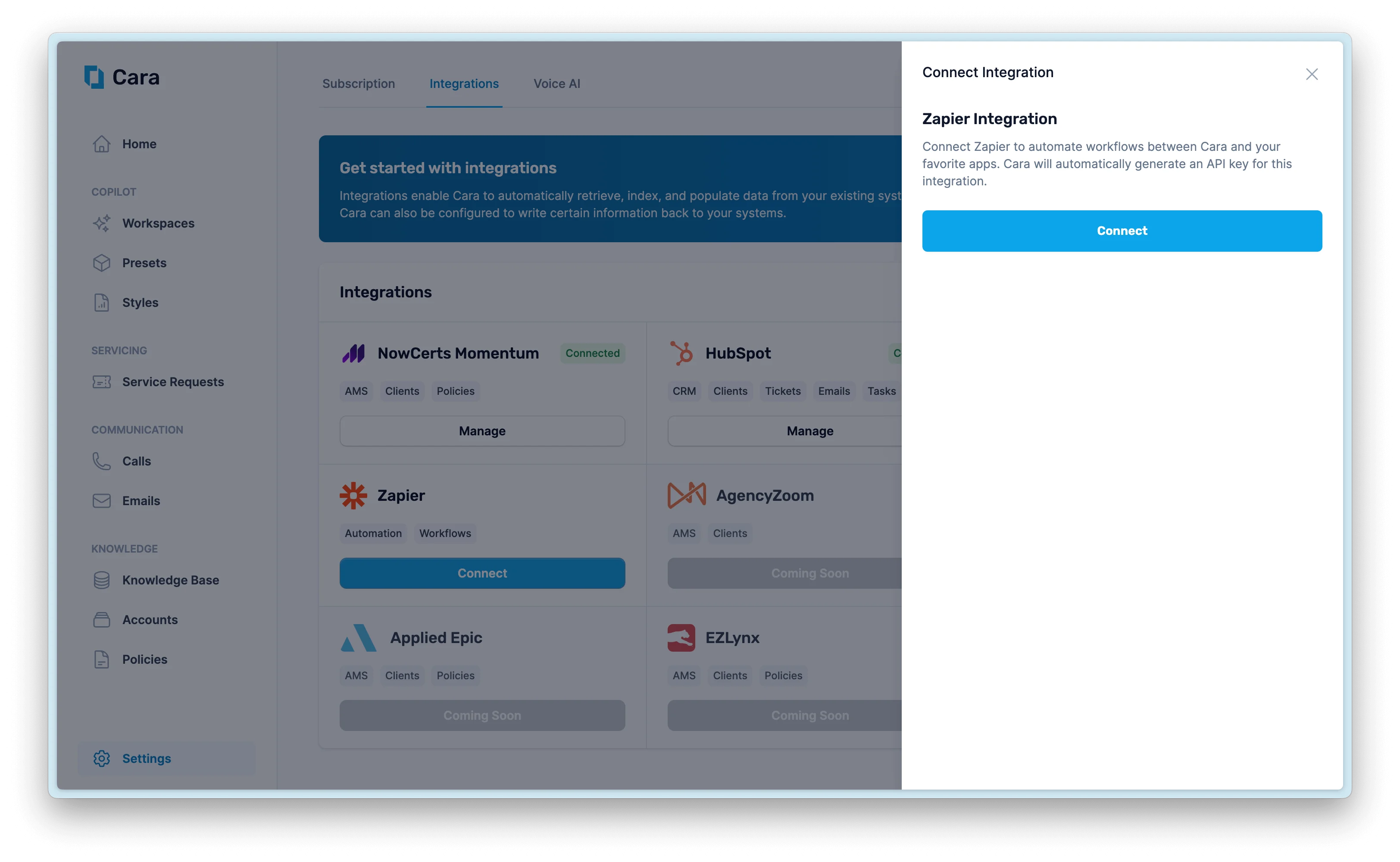
In your Cara agency portal, navigate to **Settings > Integrations**. Find the **Zapier** integration and click **Connect**. This will generate an API key that you'll use to authenticate the connection.
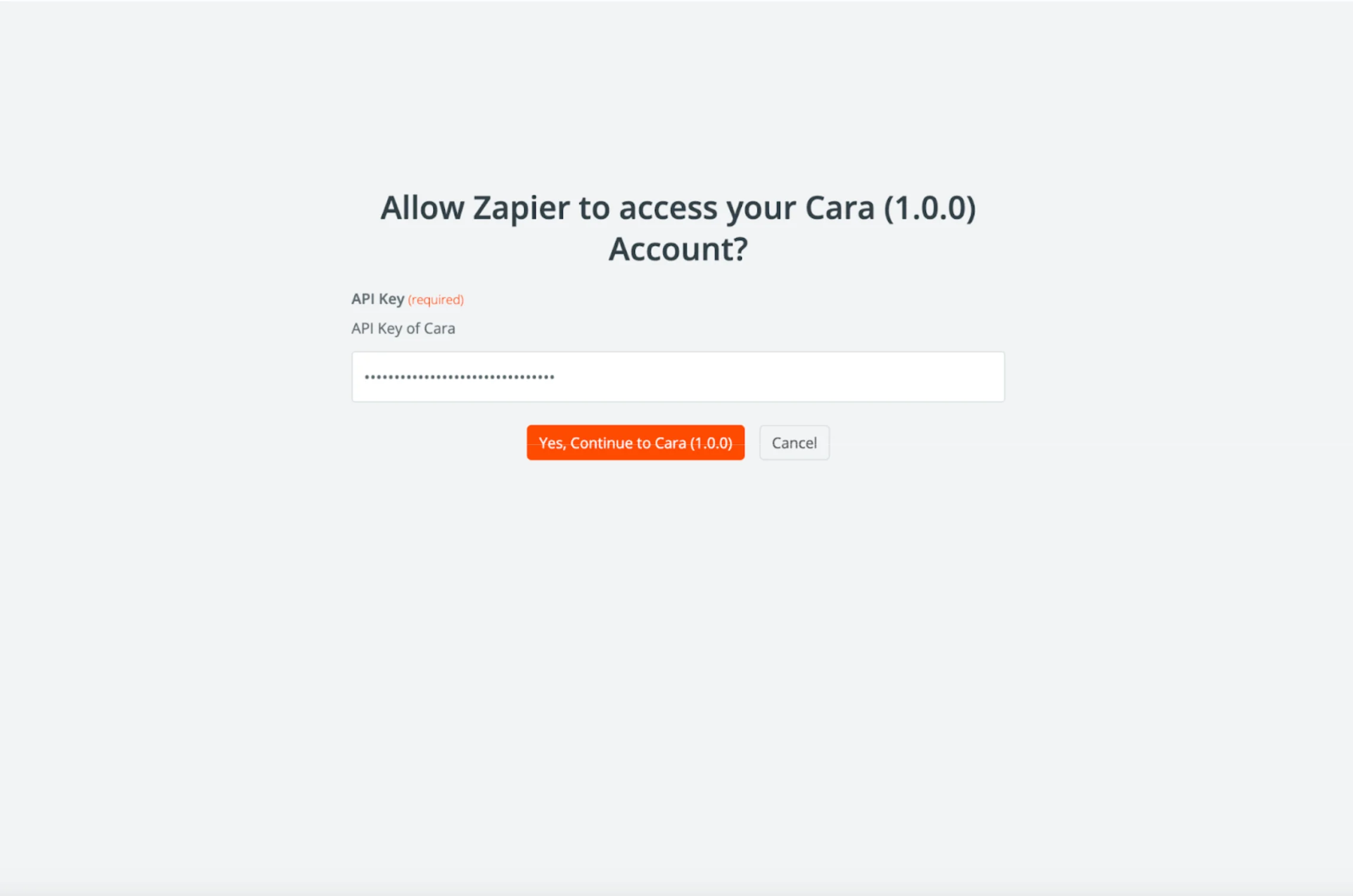
 Copy the API key generated by Cara, then navigate to Zapier and click **Add Integration** on the connection page. Enter your API key when prompted to authenticate the connection.
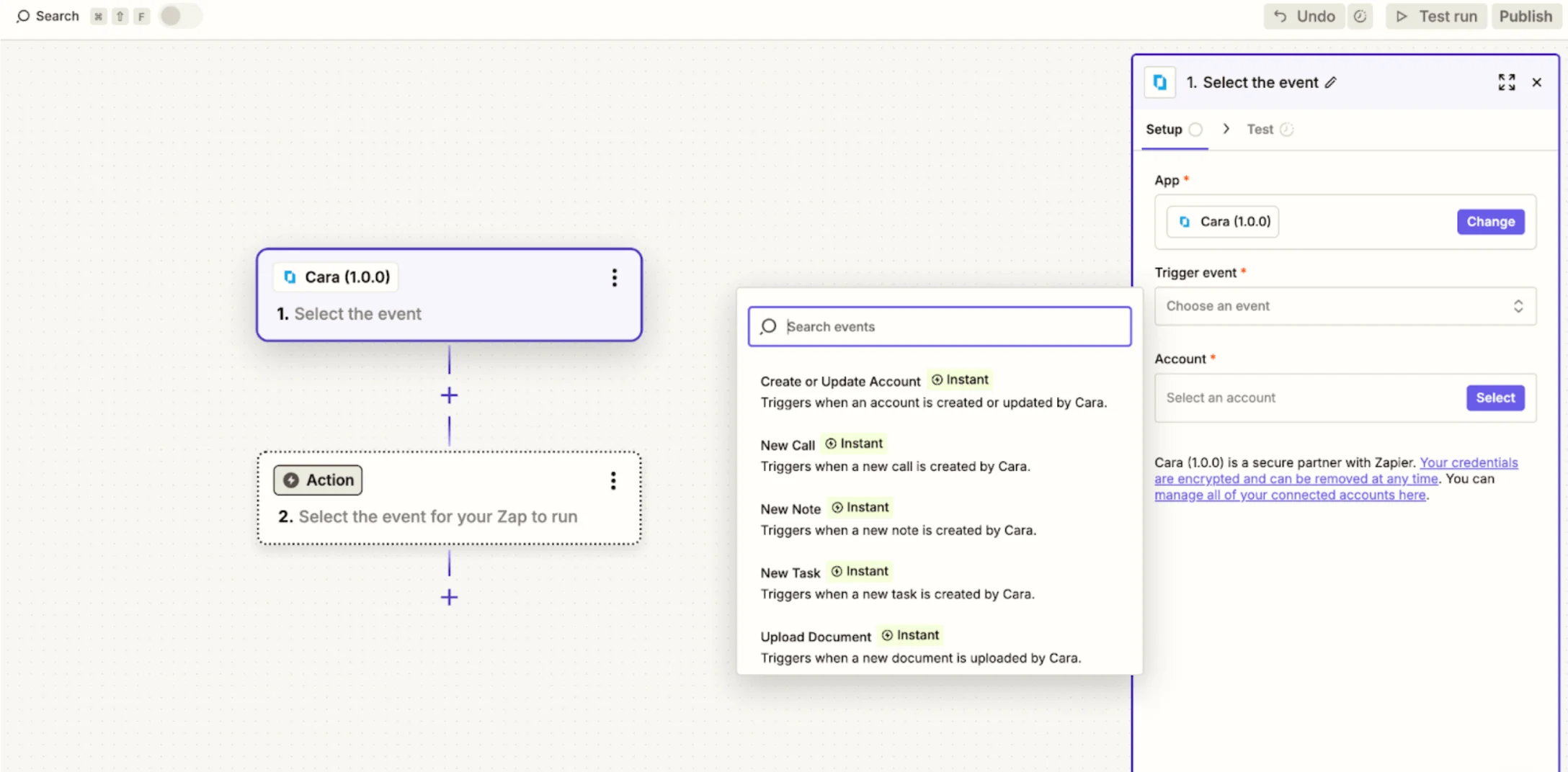
 Open the Zapier page and select the Cara event to trigger (e.g., Call Created, Task Created). Test the trigger to ensure data is received correctly, then set up actions to send that data to other apps.
 ### Use the Integration
Cara can automatically send events to Zapier when certain actions occur in your agency, or you can trigger them on-demand.
**Automatic actions**
* **Call created:** Sends caller info, call summary, transcript, and recording URL when a call is logged in Cara.
* **Task created:** Sends task details (title, description, assignee, due date, client info) when a new service request is logged.
* **Note created:** Sends note details (subject, body, client info, creation date) when added to a client account.
* **Account created or updated:** Sends full account information whenever a client account is added or updated.
* **Document uploaded:** Sends document type and file URL when a file is uploaded.
**Manual / On-Demand actions**
* **Trigger events manually:** Use Cara's Copilot or other tools to create calls, tasks, notes, or documents, which will then be sent to Zapier.
**Cara identifies customers by email or phone number.** She also searches attached files and provided content for contact details, but it's best to include them directly in your request. If she can't match the data to an account, she will request additional information.
### Example Use Cases
You can use the Zapier integration in many ways, depending on your agency's workflow.
1. **Automatically log calls in other systems**
* *How:* Create a Zap in Zapier with Call Created as the trigger and choose an action app (e.g., CRM, AMS, Google Sheets).
* *Example workflow:* When a new call is logged in Cara, send the caller's info, summary, transcript, and recording URL to your CRM.
* *Example follow-up actions:*
* Create a task in your AMS based on the call.
* Notify a team member via Slack or email when an important client calls.
2. **Create tasks in external apps**
* *How:* Trigger from Task Created in Cara and send to tools like Trello, Asana, or Monday.com.
* *Example workflow:* When a new service request is created in Cara, create a corresponding task in your project management tool.
* *Example follow-up actions:*
* Assign the task to the right team automatically.
* Set due dates and reminders in the external system.
3. **Sync account updates**
* *How:* Trigger from Account Created or Updated in Cara and push data to your CRM or AMS.
* *Example workflow:* When client details change in Cara, update the record in your CRM automatically.
These are just a few ways you can use the Zapier integration to streamline your workflow. For additional help, contact [**support@getcara.ai**](mailto:support@getcara.ai).
### Tips
* Use Copilot when you want to manually create calls, tasks, notes, or documents and send them to Zapier.
### Use the Integration
Cara can automatically send events to Zapier when certain actions occur in your agency, or you can trigger them on-demand.
**Automatic actions**
* **Call created:** Sends caller info, call summary, transcript, and recording URL when a call is logged in Cara.
* **Task created:** Sends task details (title, description, assignee, due date, client info) when a new service request is logged.
* **Note created:** Sends note details (subject, body, client info, creation date) when added to a client account.
* **Account created or updated:** Sends full account information whenever a client account is added or updated.
* **Document uploaded:** Sends document type and file URL when a file is uploaded.
**Manual / On-Demand actions**
* **Trigger events manually:** Use Cara's Copilot or other tools to create calls, tasks, notes, or documents, which will then be sent to Zapier.
**Cara identifies customers by email or phone number.** She also searches attached files and provided content for contact details, but it's best to include them directly in your request. If she can't match the data to an account, she will request additional information.
### Example Use Cases
You can use the Zapier integration in many ways, depending on your agency's workflow.
1. **Automatically log calls in other systems**
* *How:* Create a Zap in Zapier with Call Created as the trigger and choose an action app (e.g., CRM, AMS, Google Sheets).
* *Example workflow:* When a new call is logged in Cara, send the caller's info, summary, transcript, and recording URL to your CRM.
* *Example follow-up actions:*
* Create a task in your AMS based on the call.
* Notify a team member via Slack or email when an important client calls.
2. **Create tasks in external apps**
* *How:* Trigger from Task Created in Cara and send to tools like Trello, Asana, or Monday.com.
* *Example workflow:* When a new service request is created in Cara, create a corresponding task in your project management tool.
* *Example follow-up actions:*
* Assign the task to the right team automatically.
* Set due dates and reminders in the external system.
3. **Sync account updates**
* *How:* Trigger from Account Created or Updated in Cara and push data to your CRM or AMS.
* *Example workflow:* When client details change in Cara, update the record in your CRM automatically.
These are just a few ways you can use the Zapier integration to streamline your workflow. For additional help, contact [**support@getcara.ai**](mailto:support@getcara.ai).
### Tips
* Use Copilot when you want to manually create calls, tasks, notes, or documents and send them to Zapier.