

How it works
Custom supplemental PDF forms
1
Add forms to your library
In Copilot, open Library and go to Custom Forms. Upload each fillable PDF you use often (for example, a carrier supplemental or state-specific application).When you upload, you can optionally add instructions inside the PDF’s text fields so Cara learns what belongs in each box. For yes/no or choice fields, select the defaults you want when your source documents do not spell out an answer.Optionally, add setup guidance for context that is not obvious from the form itself. For example, how to treat account-wide vs. location-specific questions, or how to read limits and percentages.
Cara needs a fillable PDF—not a scanned or image-only file. For best results, use forms with fewer than about 400 fields and eight pages or fewer.
2
Select forms and attach source documents
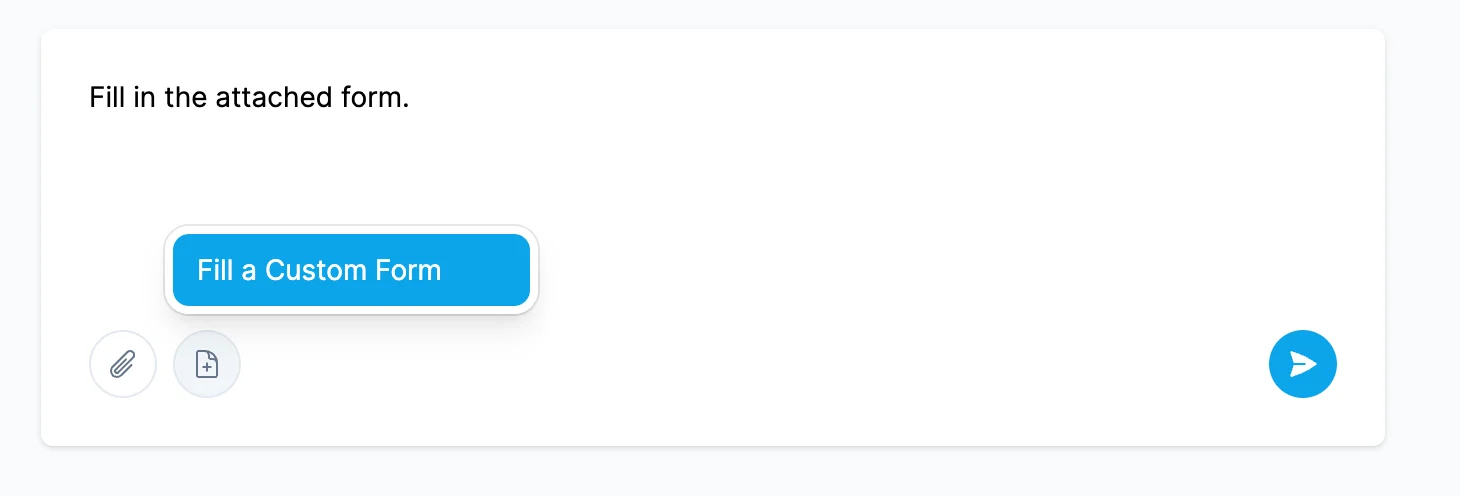
When you start a new workspace or send a message, choose Fill a Custom Form (next to the attachment control). In the modal, pick one or more ready forms from your library—you can select up to three at a time.Attach the documents Cara should read from (quotes, applications, policies, schedules, or other supporting files). Use your message if you want to steer the process such as which locations, lines of business, or dates matter most.
3
Create the workspace
After you Create Workspace with your custom forms selected, Cara fills the forms based on your uploads. You get a normal Copilot workspace: you can review Cara’s reasoning, ask follow-ups, or request changes to specific fields.Completed forms appear in your workspace Documents list under Custom PDF Forms, where you can open, download, and track versions.
4
Next steps
From there you can:
- Adjust answers or refresh a form after uploading more documents
- Use the same workspace for related tasks (emails, comparisons, or proposals)
- Add or archive forms in Library as your carriers and workflows change