

Getting Started
Create your account by navigating to Settings (bottom left corner) —> Voice AI (top middle) —> Create Agent (blue botton on the right). Once your account is created, you will receive a dedicated Voice AI phone number assigned to your agency displayed beneath the name of the voice agent. This number acts as Cara’s direct line to answer and handle calls on your behalf. You can:- Call the number directly to interact with Cara, or
- Forward your agency’s main line to this number so Cara can answer incoming calls, or
- Replace voicemail by appropriately forwarding from your number to Cara’s number
We recommend keeping your dedicated Voice AI number private. Instead, you should give customers a number that you own and forward that to Cara. This makes the migration process easy and lets you adopt and route calls to multiple Voice AI agents if needed.
Example Test Scenarios
We recommend making 5–7 test calls to experience how Cara responds to different requests and to ensure the configuration meets your needs.- Application Intake: “I’d like to get a homeowners insurance quote.”
- Leave Notes: “Could you leave a note for my agent?”
- COI Generation: “Could you help me create a new Certificate of Insurance for Amazon?”
- Call Routing: “Could you transfer me to my agent James Smith?”
- Service Requests: “I’d like to increase my general liability limits.”
- Claim FNOL: “Can you help me file a claim?”
How to Set It Up
Most agencies prefer to keep their existing phone number. To do this, configure your phone system to forward calls to Cara’s Voice AI number. Cara will then answer and process calls according to your setup. There are two common deployment approaches:- Voicemail Replacement – Forward calls to Voice AI so Cara can answer instead of sending callers to voicemail. This is done by setting forwarding rules in your phone system.
- Receptionist Mode – Forward calls to Voice AI so Cara can act as your live receptionist, greeting and assisting callers in real time including phone transfers. This can be enabled by turning transfers on.
Call Routing
Cara’s Voice AI can be configured to transfer calls to specific team members or departments. To enable this, navigate to the Transfer Settings under your Voice AI agent and input a list of names and their corresponding phone numbers under the Transfer Directory. Example:- James Smith – 201-999-1999
- Mary Smith, Personal Lines Servicing - 201-000-1000
- Commercial Lines Department – 201-555-1234
Call Log
You can view all calls by navigating to Communication > Calls.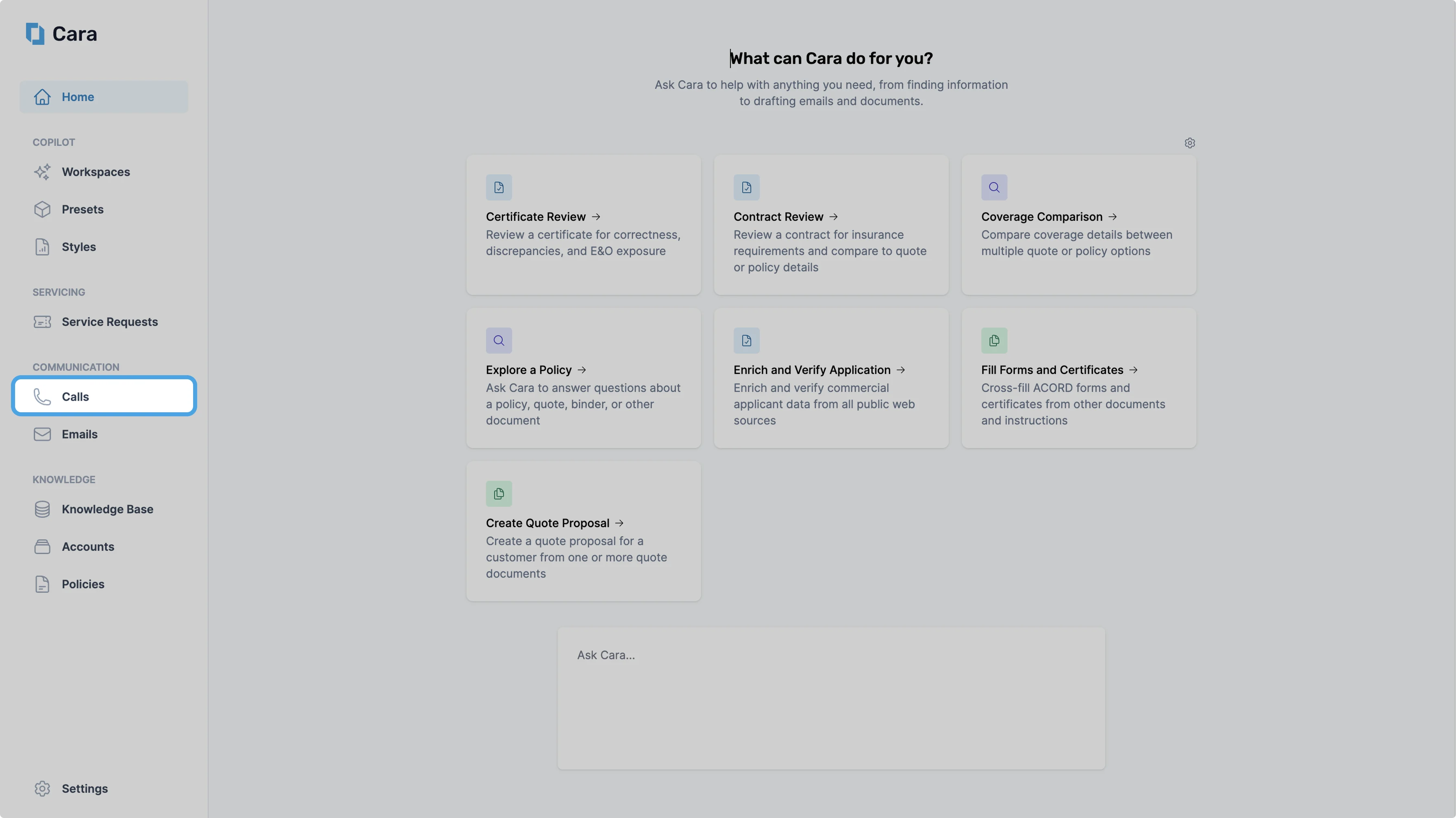
Call List Navigation