

How it works
- From the Cara homepage or Copilot module, click the ‘Presets’ tab in the left-hand navigation bar.
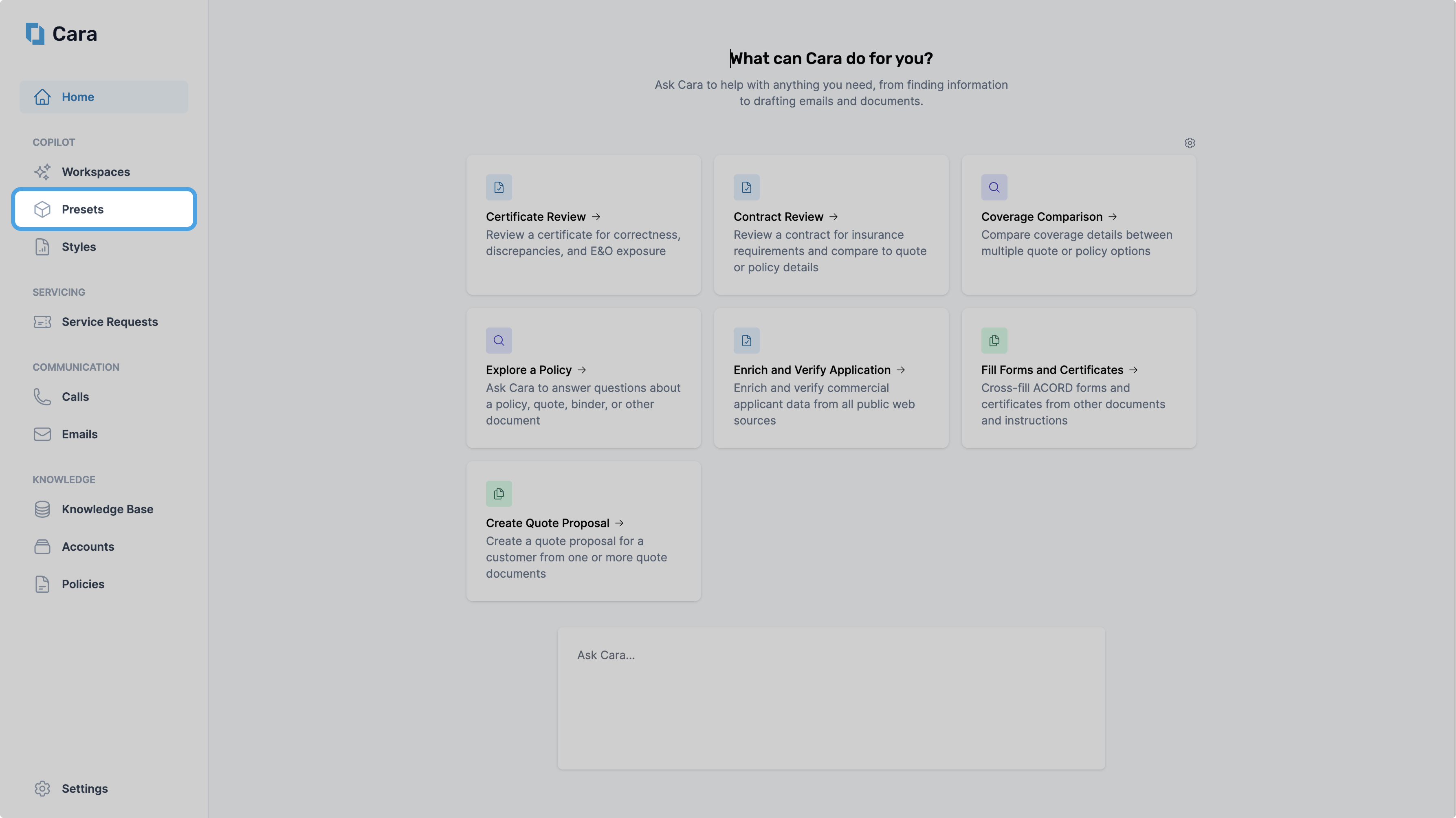
Preset Navigation
- This opens the Presets view, where all of your existing custom presets are stored. To create a new one click ‘Create Preset’ in the top right hand corner.
- Enter a title for the preset – something short and accurate to identify what you’re building
- Enter a description for the preset – a single sentence that summarizes what the preset does, for the benefit of other team members who may use it.
- In the ‘Base Prompt’ section, provide detailed instructions on what you want Cara to do. Use the Base Prompt to train Cara just like you would a new employee—explain the task clearly, specify the desired output format, and provide any necessary context or examples. Cara will follow these instructions every time the preset is run.
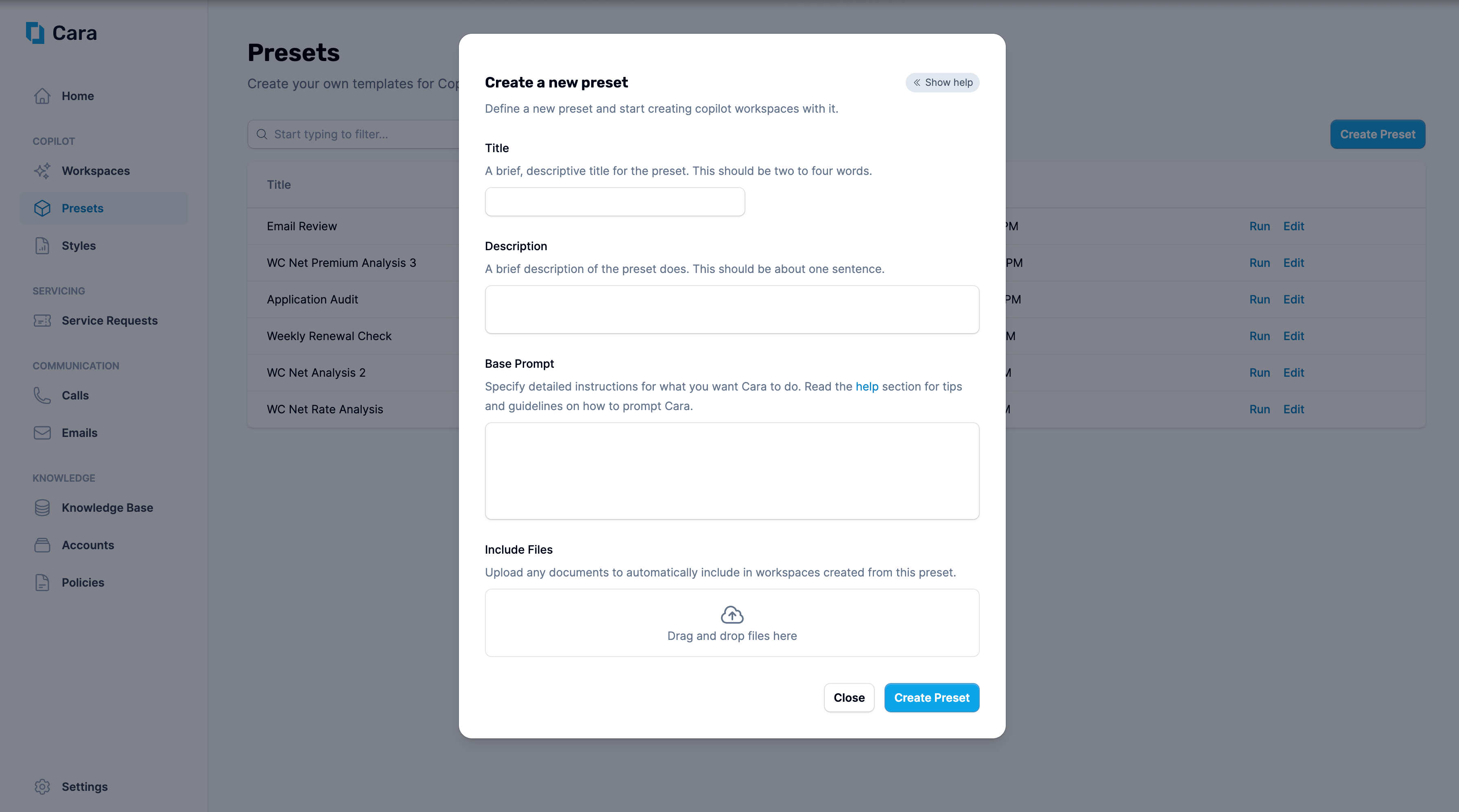
Preset Page
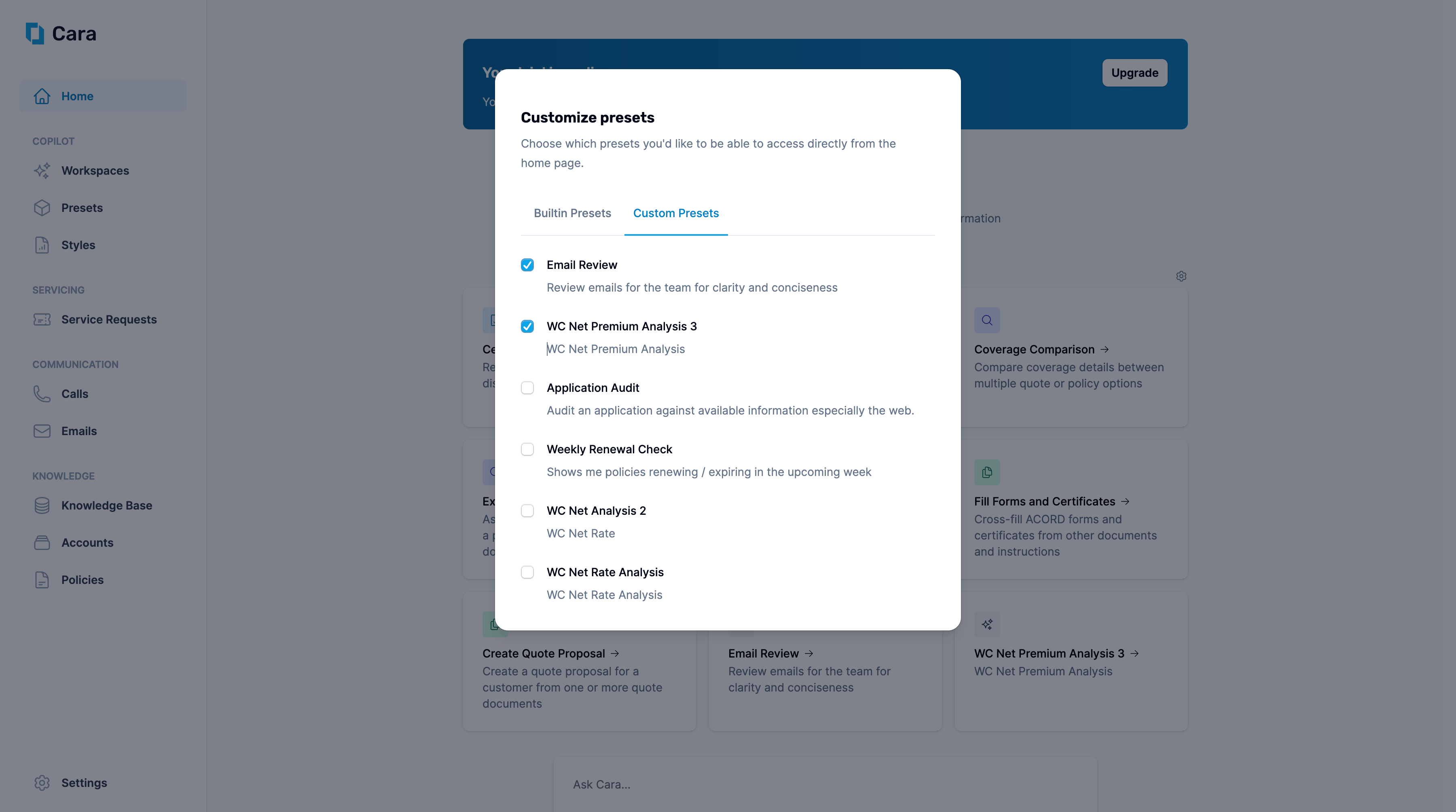
Custom Preset Homepage Shortcut
Prompting Tips
To get the best results from your Custom Presets, follow these best practices when writing your base prompt:- Be clear and specific: Tell Cara exactly what the task is and what the output should look like
- Include examples: Provide sample inputs or expected results where helpful
- Provide context: Let Cara know what kind of client, coverage, or product this applies to
- Format expectations: If you want a table, summary paragraph, or bullet list—just say so
Example use cases
- Create a renewal summary email from the most recent policy
- Generate a broker instructions memo from a submitted quote
- Create a surplus lines invoice from the renewal quote, including additional fields and fees
- Draft a submission cover letter based on carrier appetite and client profile
- Create a premium analysis summary PDF with charts from carrier premium reports