Cara can be configured to trigger zaps on certain write actions.
Cara does not ingest data from Zapier, which means that the Zap is responsible for doing the appropriate action based on the data written by Cara. When objects are written to Zapier, all information that is available is written. Your integration will have to disambiguate between creations and updates.
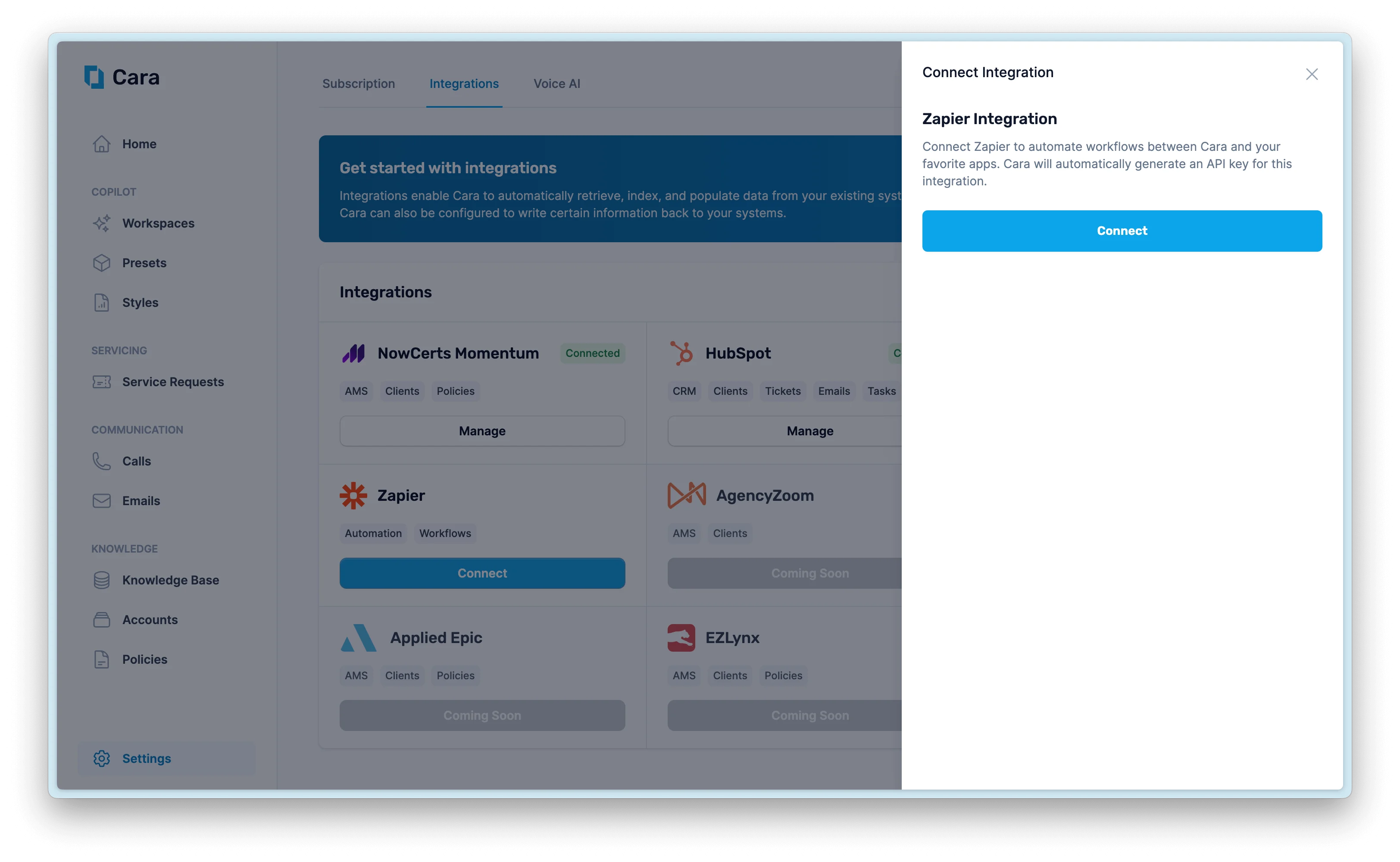
In your Cara agency portal, navigate to Settings > Integrations. Find the Zapier integration and click Connect. This will generate an API key that you’ll use to authenticate the connection.
Click 'Connect' in the Zapier Integration to generate API Key
2
Connect Cara App in Zapier
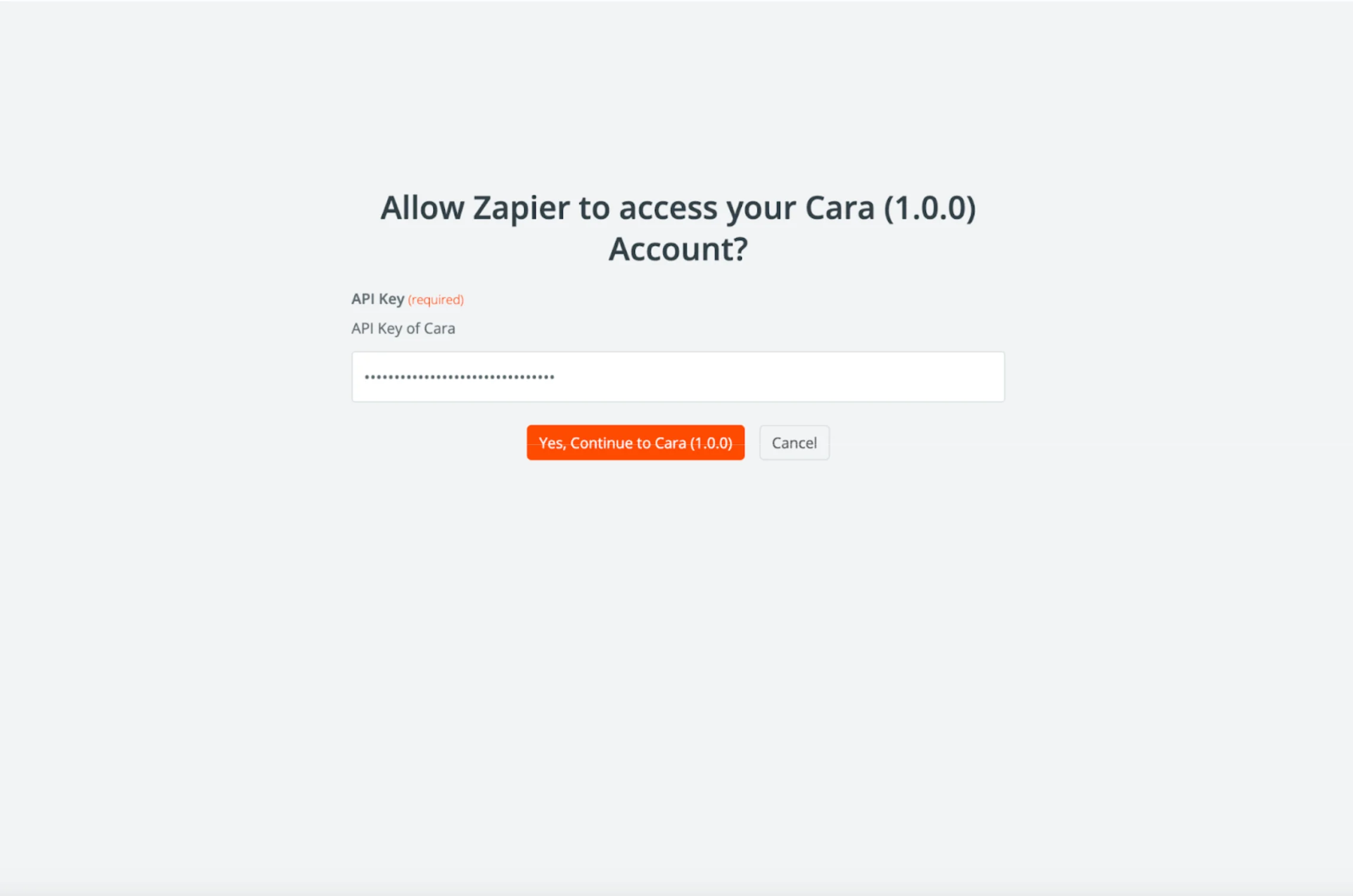
Copy the API key generated by Cara, then navigate to Zapier and click Add Integration on the connection page. Enter your API key when prompted to authenticate the connection.
Enter your API key to connect Cara to Zapier
3
Setup Zapier trigger
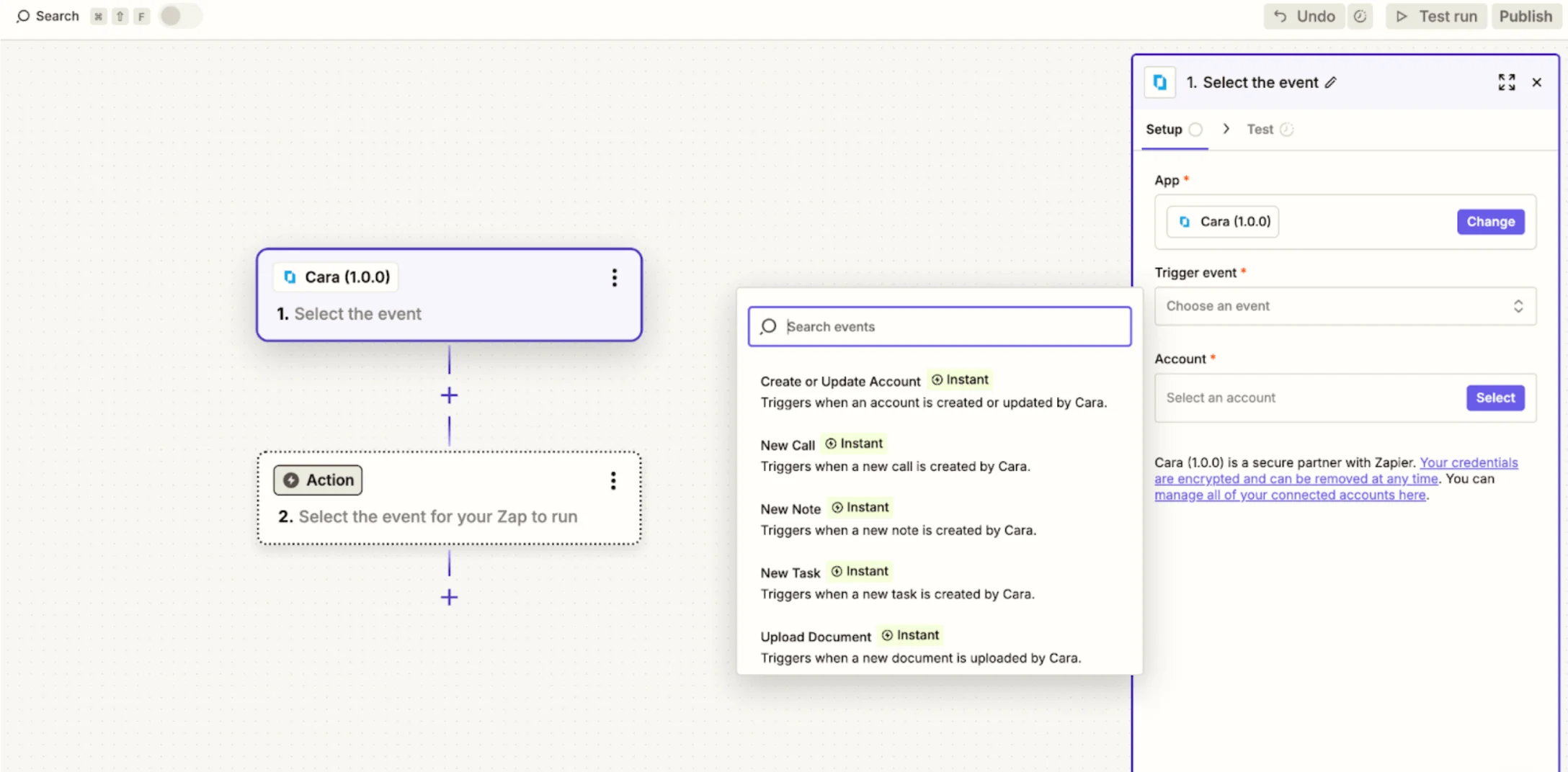
Open the Zapier page and select the Cara event to trigger (e.g., Call Created, Task Created). Test the trigger to ensure data is received correctly, then set up actions to send that data to other apps.
Configure your Zapier trigger and test the connection
Cara can automatically send events to Zapier when certain actions occur in your agency, or you can trigger them on-demand.Automatic actions
Call created: Sends caller info, call summary, transcript, and recording URL when a call is logged in Cara.
Task created: Sends task details (title, description, assignee, due date, client info) when a new service request is logged.
Note created: Sends note details (subject, body, client info, creation date) when added to a client account.
Account created or updated: Sends full account information whenever a client account is added or updated.
Document uploaded: Sends document type and file URL when a file is uploaded.
Manual / On-Demand actions
Trigger events manually: Use Cara’s Copilot or other tools to create calls, tasks, notes, or documents, which will then be sent to Zapier.
Cara identifies customers by email or phone number. She also searches attached files and provided content for contact details, but it’s best to include them directly in your request. If she can’t match the data to an account, she will request additional information.