

Reminder: A Preset is a guided, AI workflow template designed to streamline common insurance servicing tasks; available as prebuilt and customizable versions
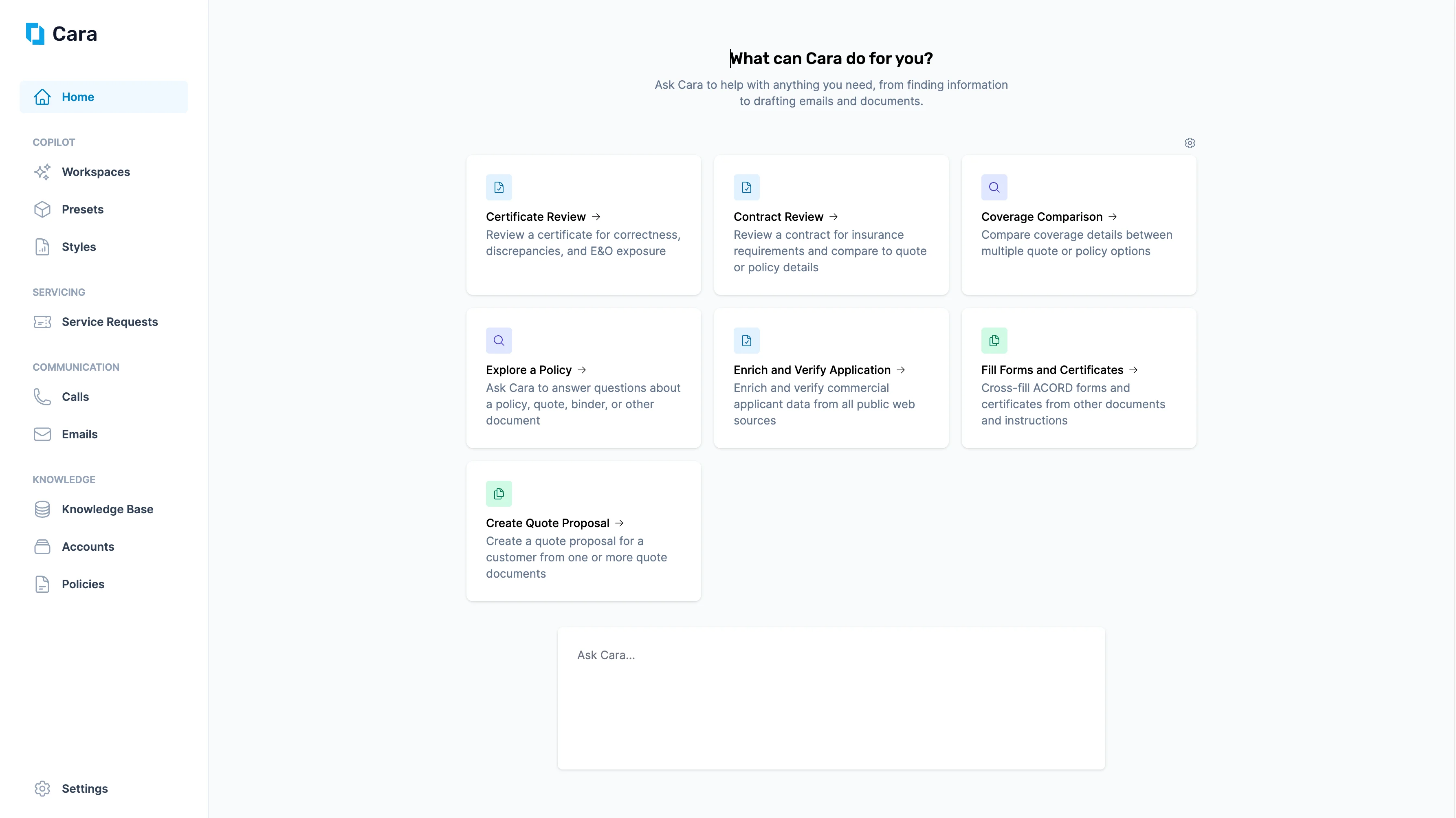
Cara homepage showing Presets
Prebuilt Presets
Cara offers a range of prebuilt Presets designed specifically for the most common servicing needs of insurance agencies. To explore the prebuilt Presets, choose a guide from the list below.Coverage Comparison
Compare coverage details across multiple quotes or policy options.
Quote Proposal
Generate a client-ready quote proposal from one or more quote documents.
Explore a Policy
Ask questions, review exclusions, or get a full coverage summary across one or more policy documents.
Fill Forms & Certificates
Automatically populate ACORD forms and certificates with unstructured information.
Certificate Review
Review certificates for accuracy, discrepancies, and E&O exposure.
Contract Review
Analyze contracts for insurance requirements and compare against quote or policy details.
Coverage Gap Analysis
Identify gaps and cross-sell opportunities by auditing a client’s current coverage against their real-world exposure.
Risk Matching
Match a submission to eligible carriers in your knowledge base with class code verification and placement reasoning.
Risk Report
Generate a professional, client-ready risk management report that positions your agency as a strategic advisor.
SOV & COPE Analysis
Build or verify a complete Statement of Values for any property portfolio — from a full document set or a list of addresses.
Claims Review
Understand exactly what a policy covers for an active claim and what needs to happen next.
Loss Run Analysis
Summarize a client’s claims history and generate a professional Risk Mitigation Statement for underwriter submission.
Underwriting Analysis
Verify that what’s on the application matches reality before the submission goes to market.
Custom Presets
Custom presets allow you to leverage Cara’s capabilities to automate tasks and workflows specific to your agency. Once you’ve created a custom preset, you can add a button for it on the homepage by clicking the gear icon. Once added, you’ll be able to quickly access this preset.Ask Cara Directly
Alternatively, you can Ask Cara Directly, using the free-text input bar at the bottom of the page. Just type your question or instruction, and Cara will respond instantly..png?fit=max&auto=format&n=PY1gFhJpMuuYvPFQ&q=85&s=126354c21fdd4e8f14783ec7eef884b6)
Ask Cara Directly
Workspaces
No matter how you start a workflow in Copilot, a Workspace is created for each session. You can view and manage all your active Workspaces by navigating to Copilot > Workspace in the left-hand sidebar.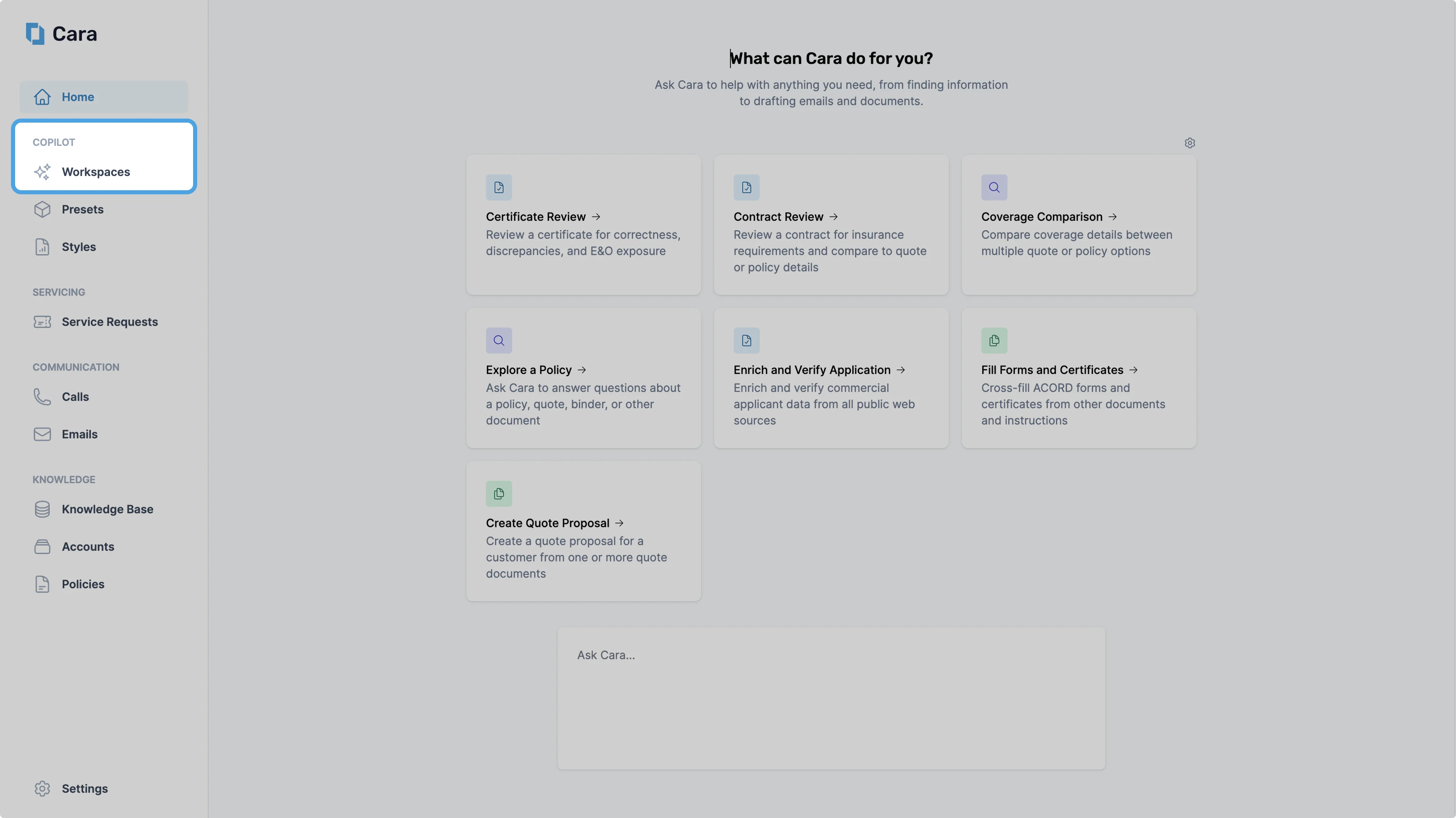
Workspace Navigation
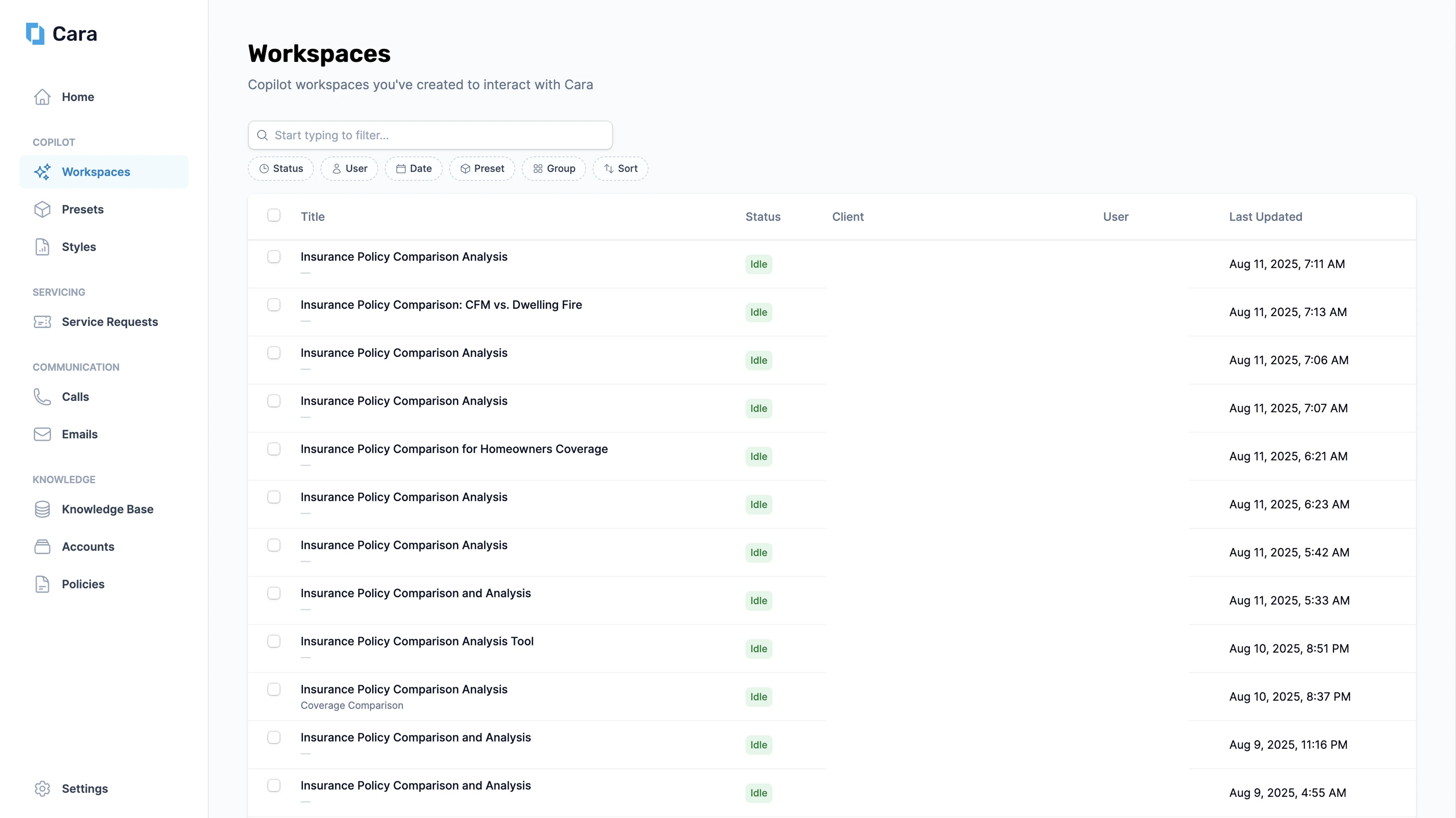
Cara Workspaces
- Status
- Idle = Cara has completed the task
- Waiting = Cara is waiting for your input
- Working = Cara is working on the task
- User
- Date
- Preset
.png?fit=max&auto=format&n=PY1gFhJpMuuYvPFQ&q=85&s=b5b534cd57ca3388498c753e906da2a8 "Workspace Pn")
Workspace Search & Filters
Inside a workspace New
Every workspace opens on three tabs — Cara’s conversation, the tool runs she executes, and the files she produces. You can flip between them at any time without losing state.- Messages
- Execution
- Artifacts
The conversation between you and Cara — prompts, follow-ups, and Cara’s narrative reasoning. Use this tab to steer the task in natural language.
- Generate an ACORD form → Upload to AMS
- Compare quotes → Draft an email to the customer
- Pull current customer policy information → Compare to renewal quote → Draft an email to the customer
Visibility New
Every workspace has a visibility scope that controls who else can see it:
You can change visibility from the workspace header at any time. Team and Private are enforced consistently across the workspace list, search, and analytics.
Desktop notifications New
Cara can send a desktop notification the moment a workspace transitions from Working to Idle so you don’t have to babysit long-running jobs. Enable notifications from your user preferences.Desktop notifications require the workspace tab to remain open in a browser window (it can be in the background). Closing the tab suspends the workspace’s notifications.