Create a new Private App and generate a Personal Access Token (PAT) for Cara in your HubSpot CRM. You’ll need to ensure the following scopes are selected for the integration to work correctly:
crm.objects.contacts.read
crm.objects.contacts.write
crm.objects.deals.read
crm.objects.deals.write
crm.schemas.contacts.read
crm.schemas.contacts.write
crm.schemas.deals.read
crm.schemas.deals.write
tickets
2
Enter your credentials in Cara
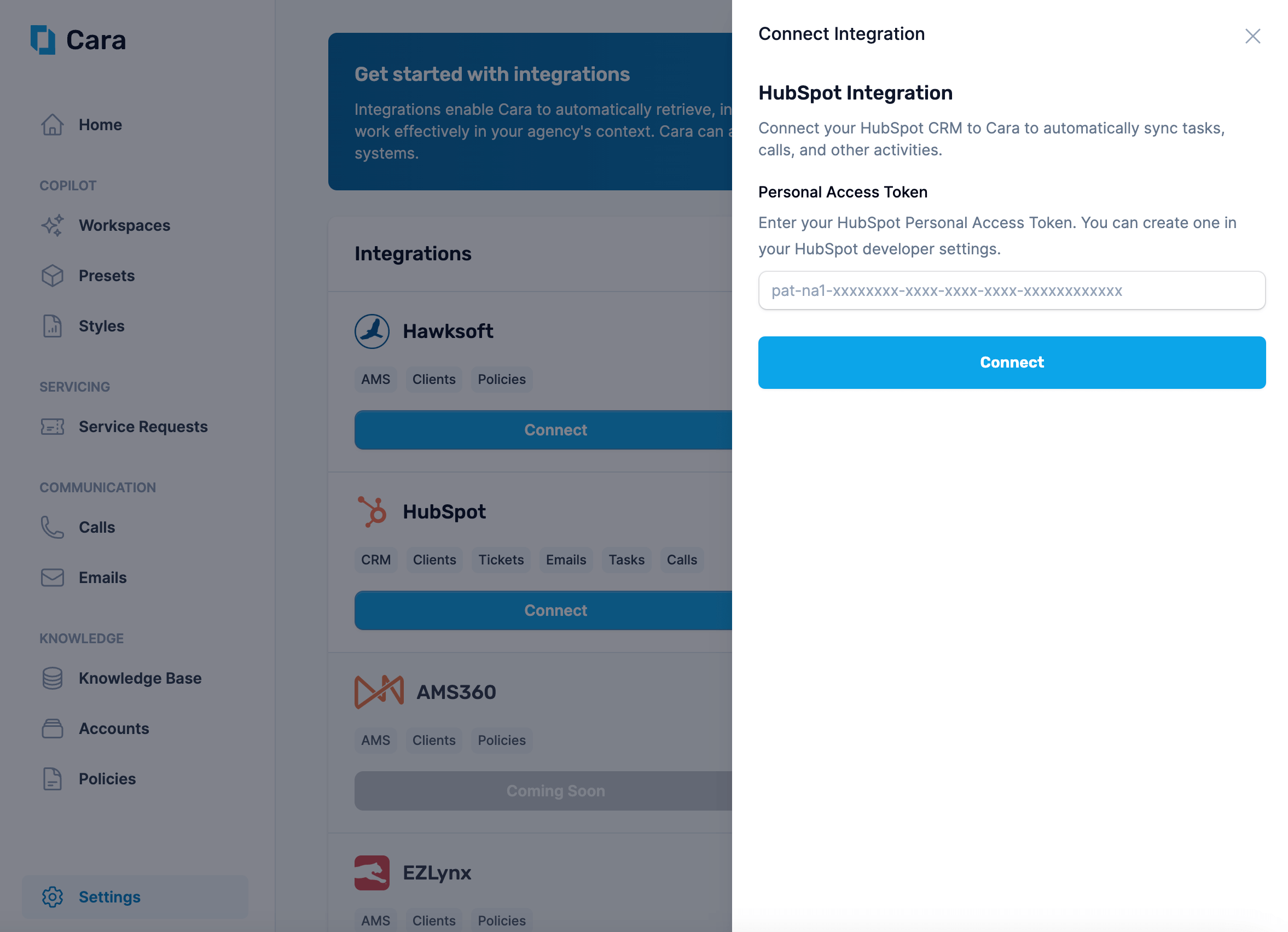
Navigate to the Integrations tab in Cara and click on the “Connect” button on the “HubSpot” tile. Enter your Personal Access Token here and click Connect.
Enter your PAT to connect Cara to HubSpot
3
Enable account sync (optional)
New Toggle Sync Accounts if you want Cara to read and write HubSpot companies / accounts in addition to contacts. When the toggle is off, Cara treats HubSpot as a contact-only CRM and skips account-level lookups and writes — useful for agencies who manage account data elsewhere.The toggle is respected everywhere Cara makes decisions about HubSpot: getIntegrationActions, Voice AI customer lookups, and Copilot on-demand writes.
4
Setup task syncing
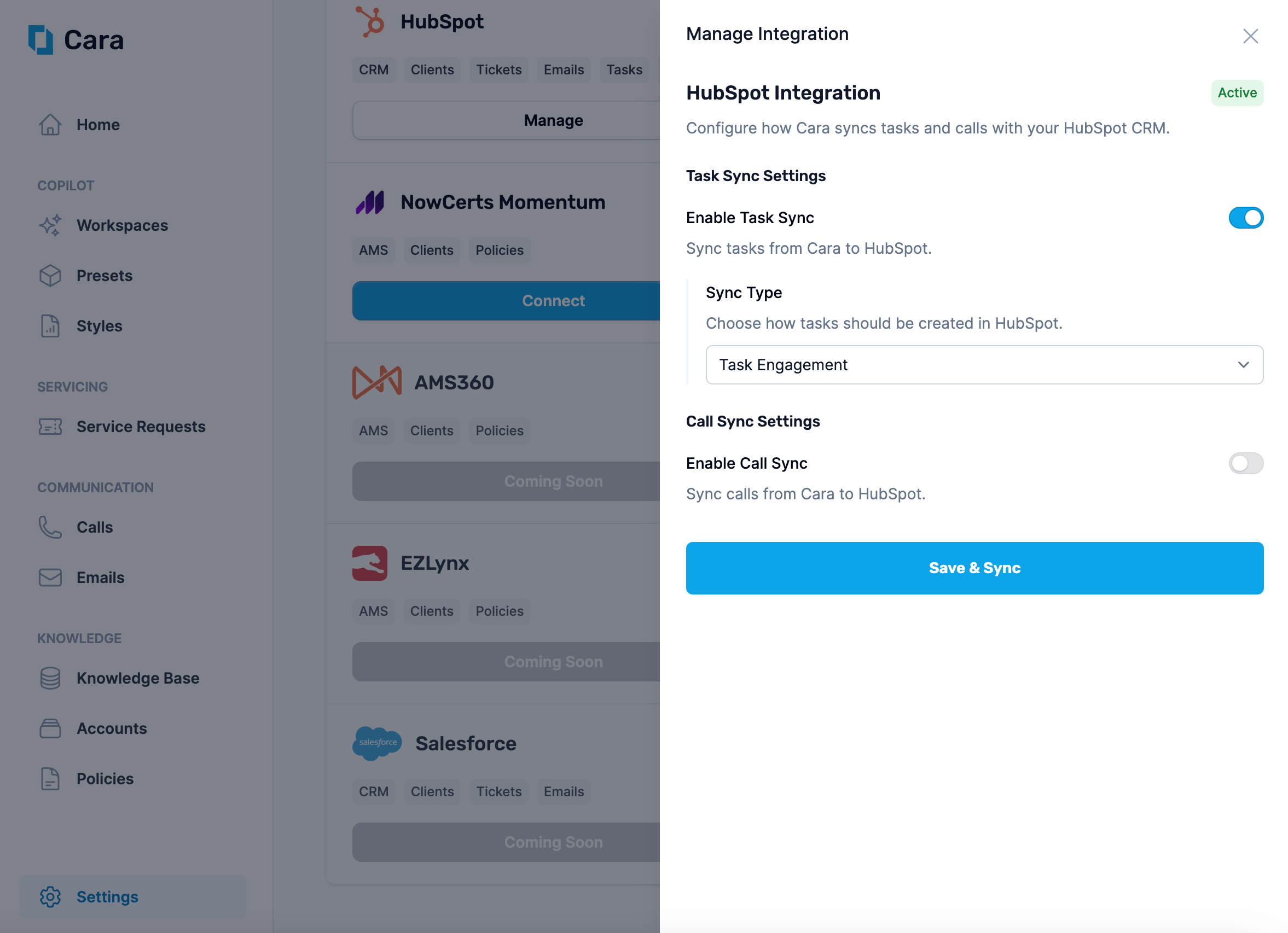
To have Cara write tasks to your CRM, you must toggle Enable Task Sync and configure how you want tasks to be synced.Sync as EngagementCara can write tasks as engagements on contacts. To do so, choose “Task Engagement” for the “Sync Type”.
Sync tasks as engagements on contacts
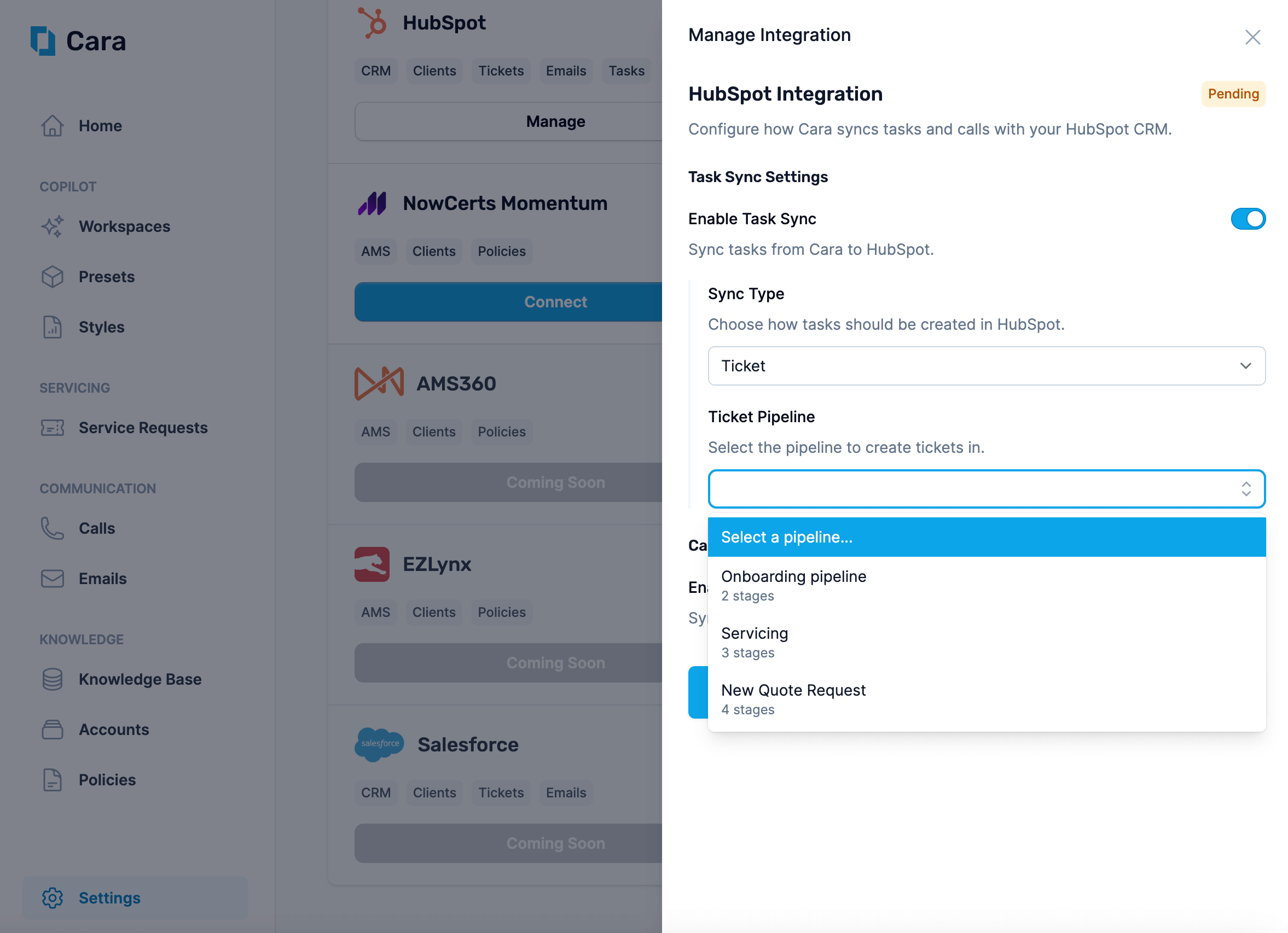
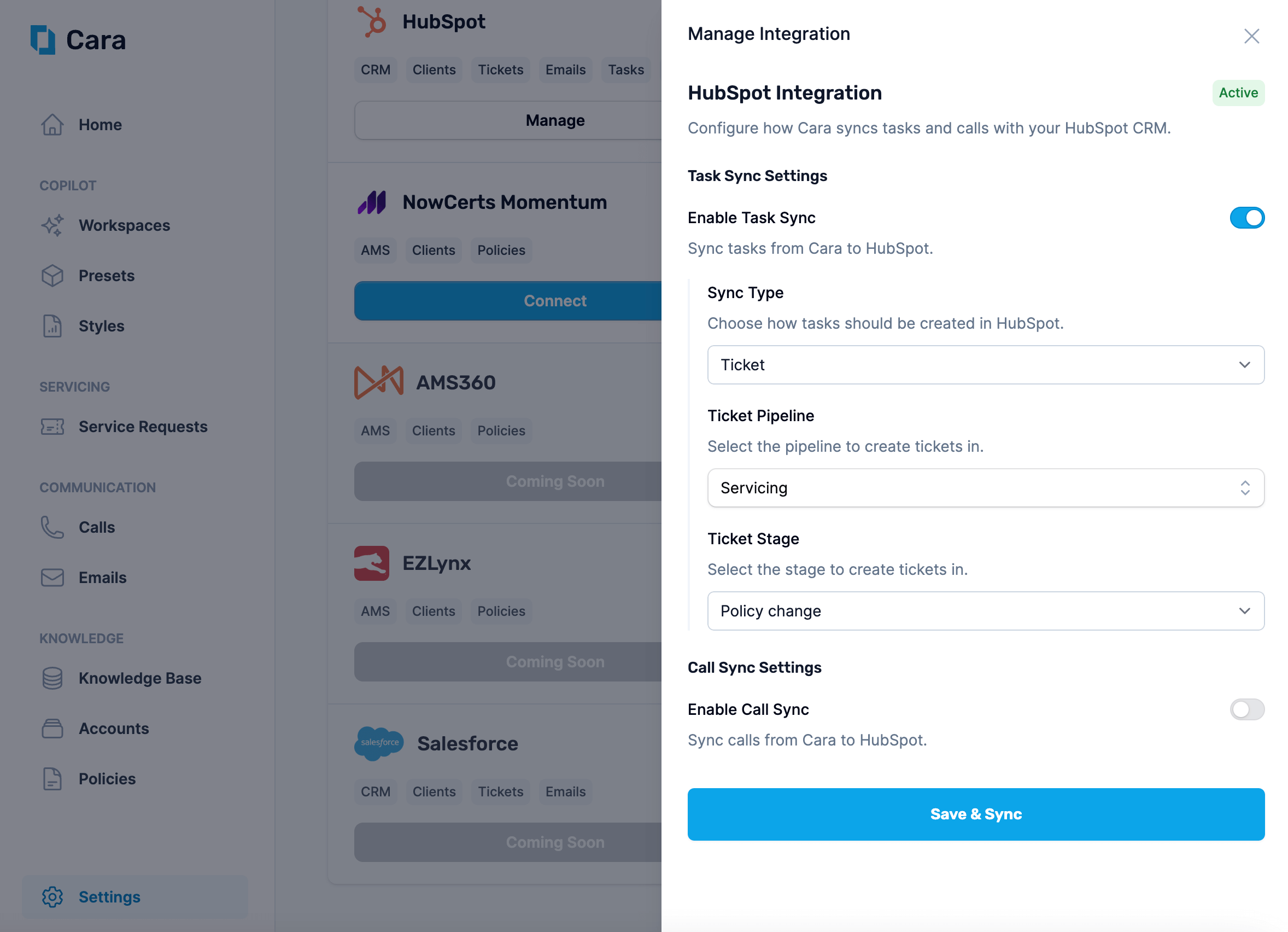
Sync as TicketCara can write tasks as tickets in a particular pipeline. To do so, choose “Ticket” for the “Sync Type”, and then select the “Pipeline” and “Stage” you’d like tickets to be created in.
Sync tasks as tickets in a pipeline
5
Setup call syncing
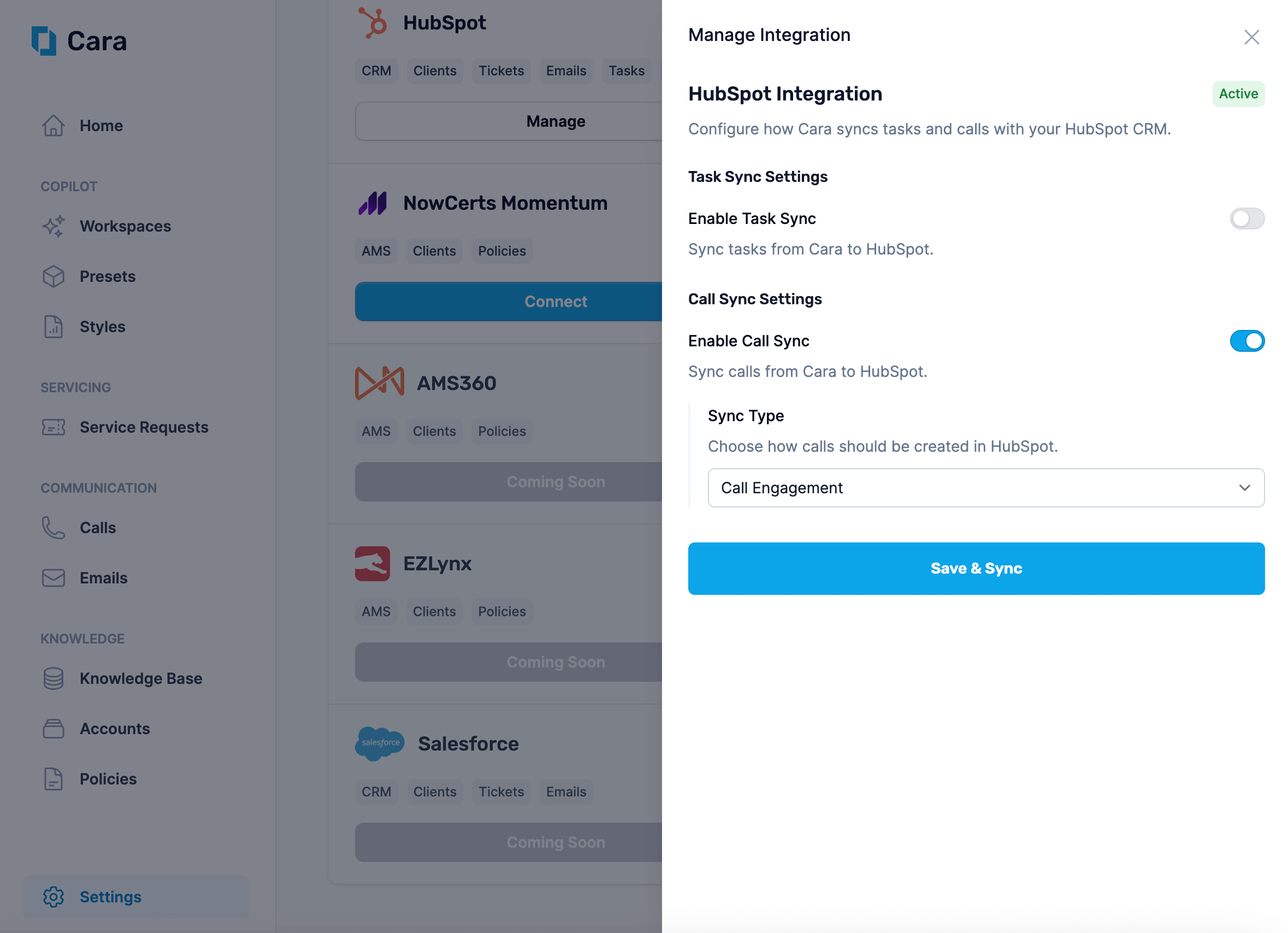
To have Cara write calls to your CRM, you must toggle Enable Call Sync and configure how you want tasks to be synced.Sync as EngagementCara can write calls as engagements on contacts. To do so, choose “Call Engagement” for the “Sync Type”. This will show up as a call (including summary and recording) on the contact record.Cara can also write calls as notes on the contact. To do so, choose “Note Engagement” for the “Sync Type”. This will include just the summary and transcript as a note on the contact record.
Sync calls as engagements on contacts
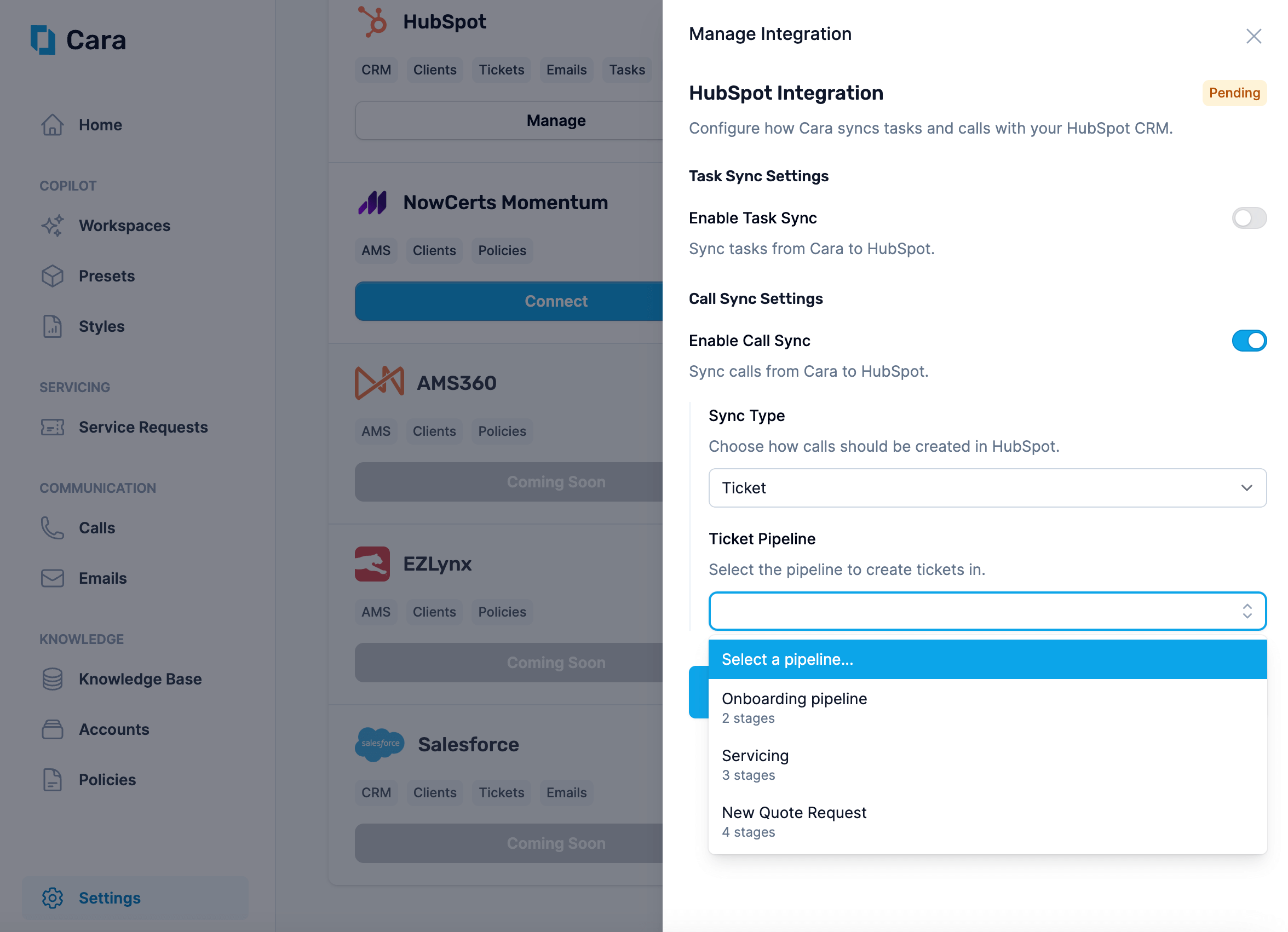
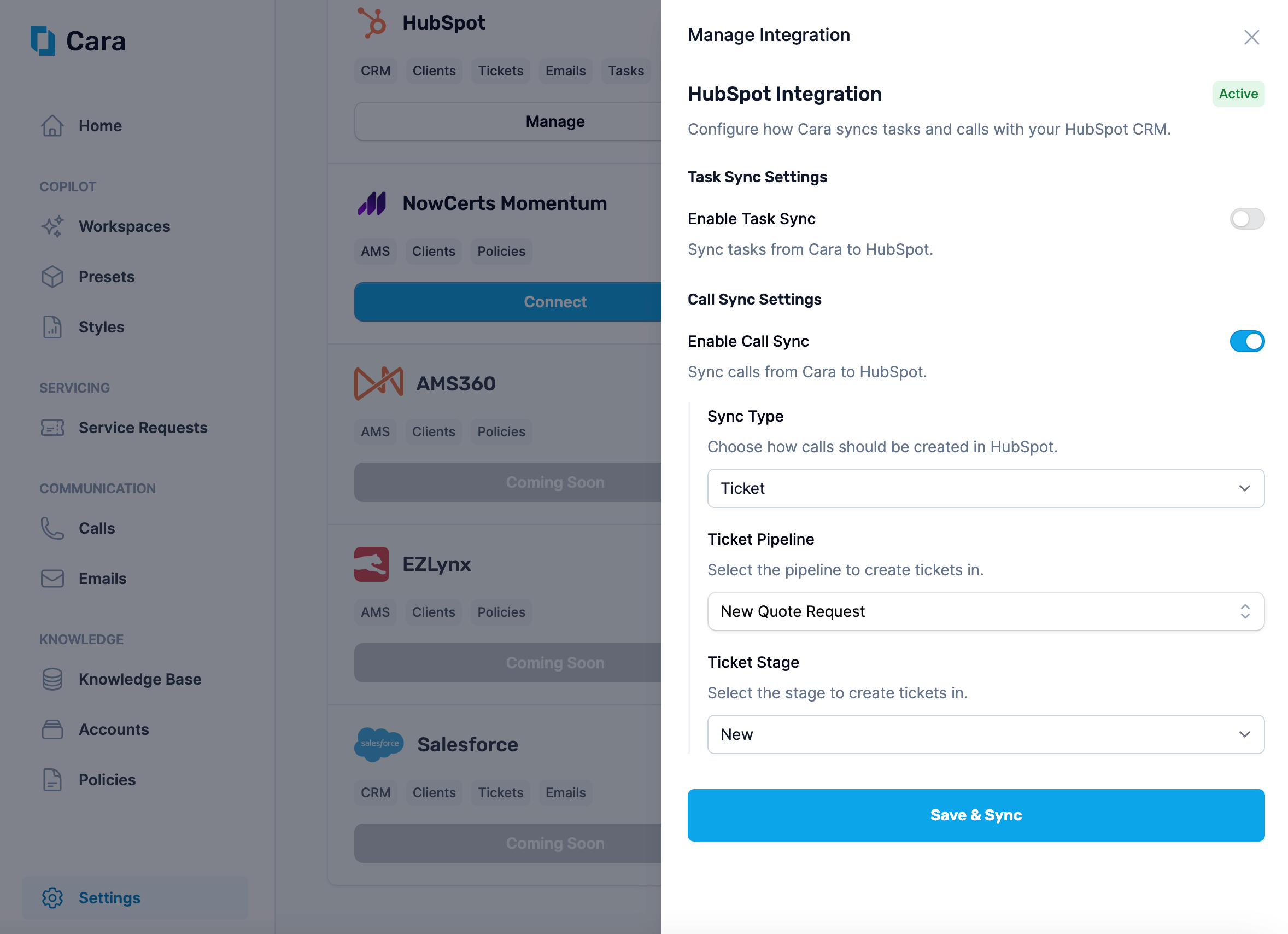
Sync as TicketCara can write calls as tickets in a particular pipeline. To do so, choose “Ticket” for the “Sync Type”, and then select the “Pipeline” and “Stage” you’d like tickets to be created in.
Sync tasks as tickets in a pipeline
Was this page helpful?
⌘I
Assistant
Responses are generated using AI and may contain mistakes.