

How it works
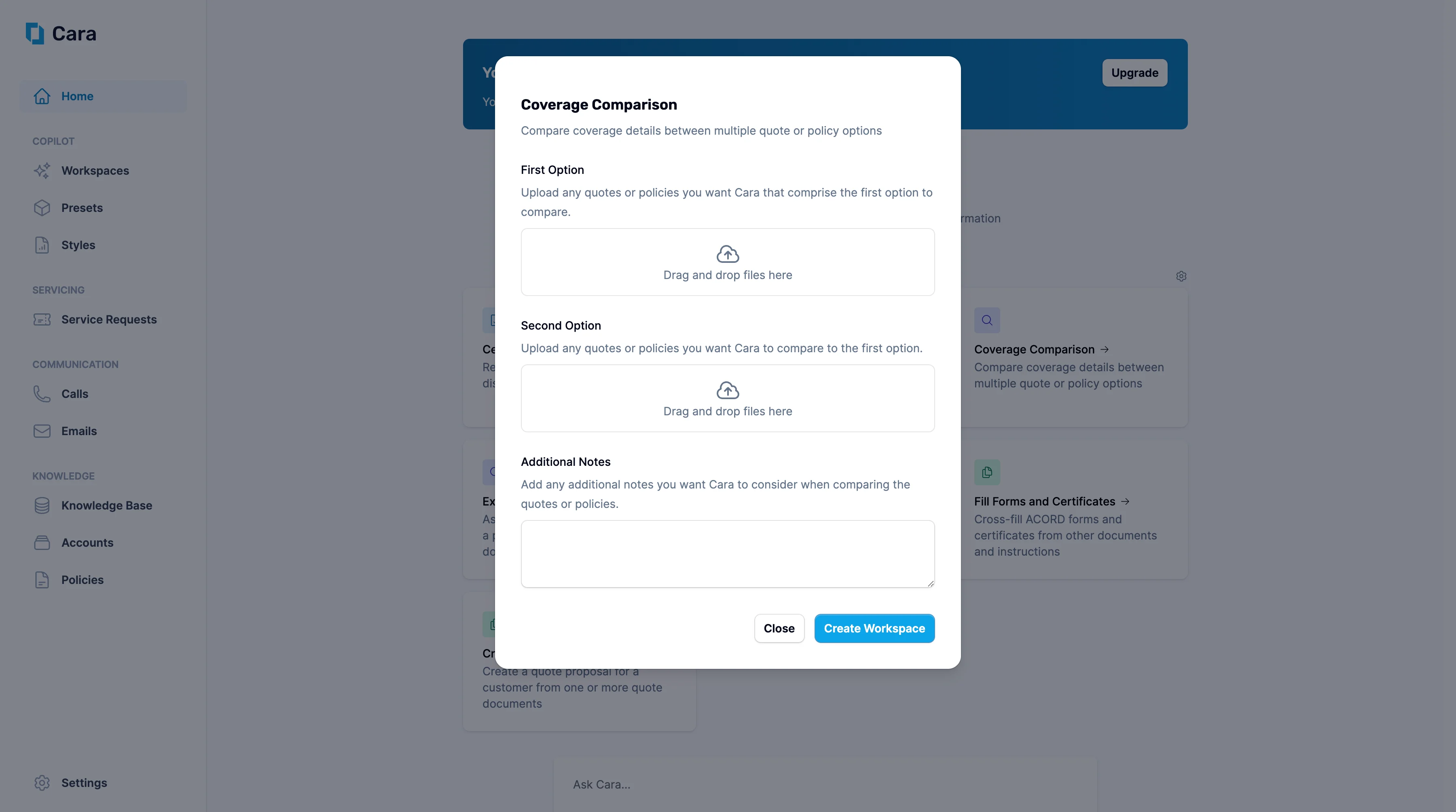
Coverage Comparison
1
Upload documents
Start by uploading the documents that make up your First Option. This can be a single quote or multiple policies you want to evaluate as one combined option.If applicable, upload the documents for the Second Option—again, this can be a single file or a combination of quotes or policies
Cara currently accepts PDF file uploads, although more file types are coming soon.
2
Add Additional Notes
Use the Additional Notes section to guide Cara on any specific context or priorities for the comparison. For example, you might want Cara to focus on specific coverages or endorsements in her review.
3
Click 'Create Workspace'
Once you click Create Workspace, Cara will generate a dedicated workspace showing:
- A full audit trail of how the comparison was conducted
- A summary of findings, including premium differences, key coverage variations, and any E&O considerations
4
Next Steps
From here, you have several options, including:
- Ask Cara follow-up questions
- Request another action using the same information (e.g. generate an email summarizing the comparison)
- Create a quote proposal.