

Built-in Styles
Whenever Cara generates a document (e.g. a quote proposal), you can choose from a set of built-in styles to change the look and feel of the output. To apply a style, click Render in the document pane and select from the available options. Cara will automatically reformat the document using the selected style.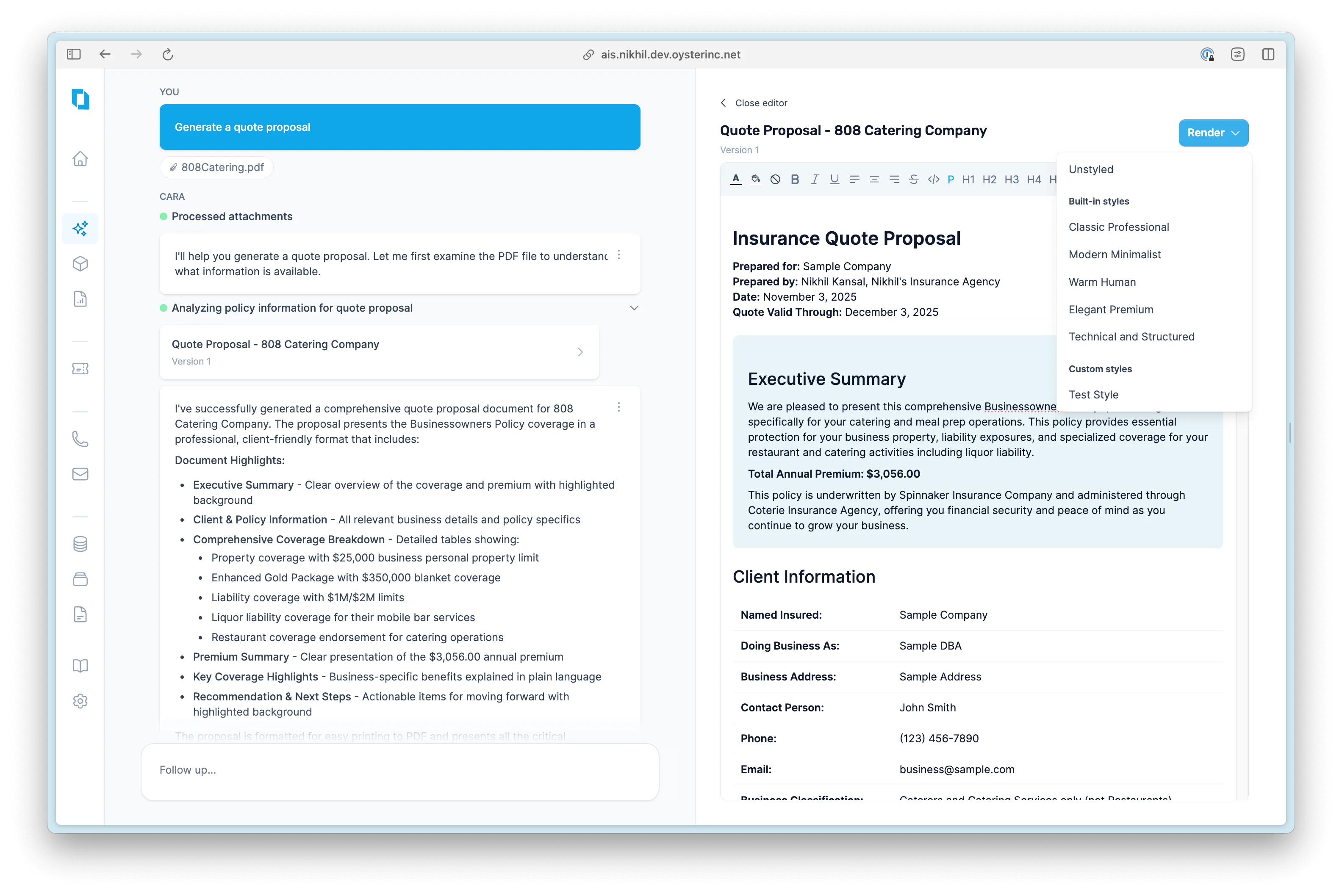
Styles in Preview Document
- Classic Professional
- Modern Minimalist
- Warm Human
- Elegant Premium
- Technical and Structured
Custom Styles
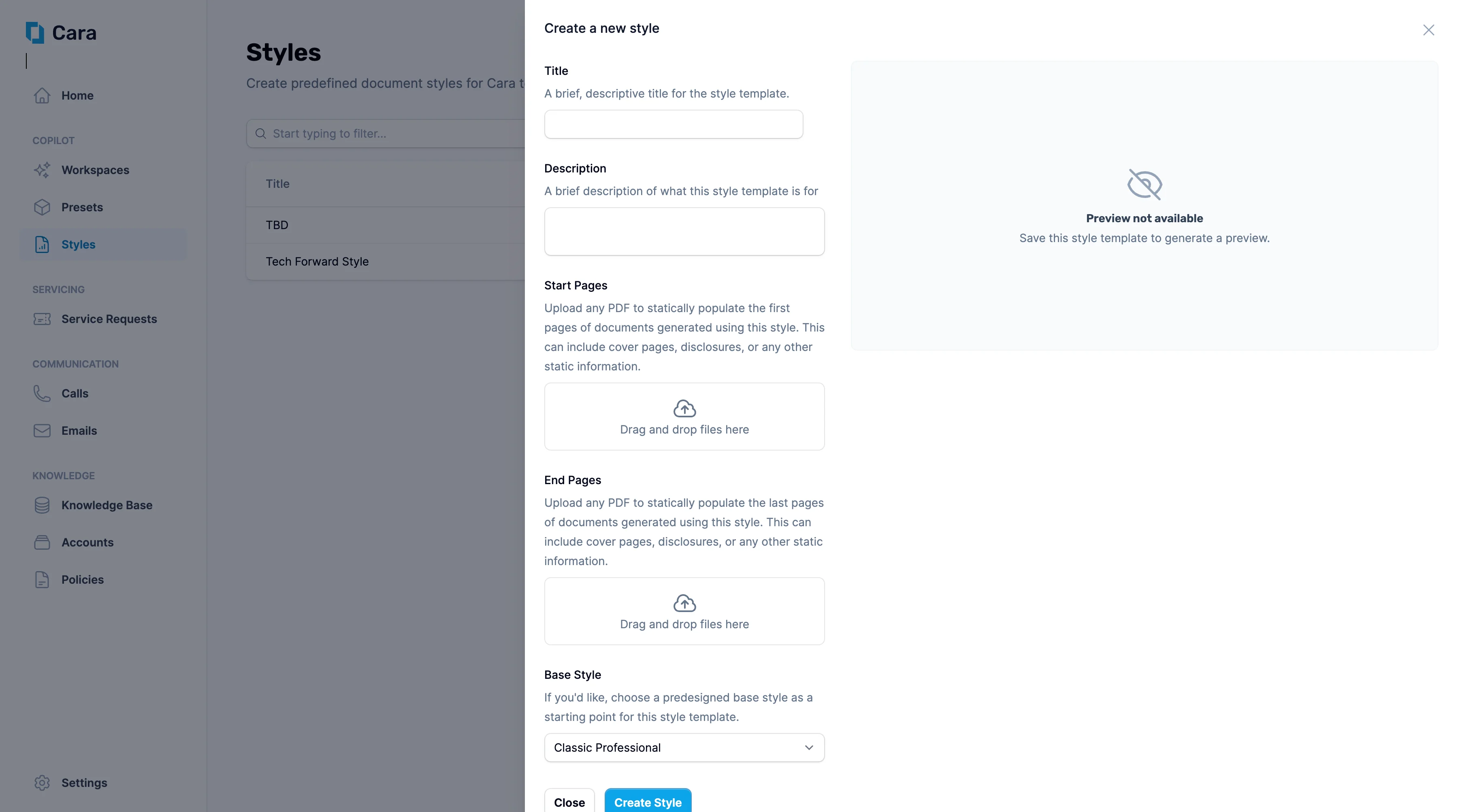
To create your own document style:- Navigate to the Styles tab in the left-hand menu
- You’ll see any existing styles you’ve saved
- Click Create Style to get started — Cara will walk you through the setup
Custom Styles
- Title: A clear name to identify the style
- Description: A short summary of what the style is used for
- Start Pages (optional): Upload a PDF to appear at the start of every document using this style — such as a branded cover page, welcome message, or disclosures
- End Pages (optional): Upload a PDF to appear at the end — such as legal disclaimers or company terms
- Headers and Footers (optional): Specify content to place in the headers and footers of each page (excluding the start and end pages previously specified). See more details below.
- Base Style (optional): Select a predefined layout as a starting point
Headers and Footers
You can configure a style to populate certain information in the headers and footers. Cara defines 6 distinct regions, which can be independently customized:- Header Left
- Header Center
- Header Right
- Footer Left
- Footer Center
- Footer Right
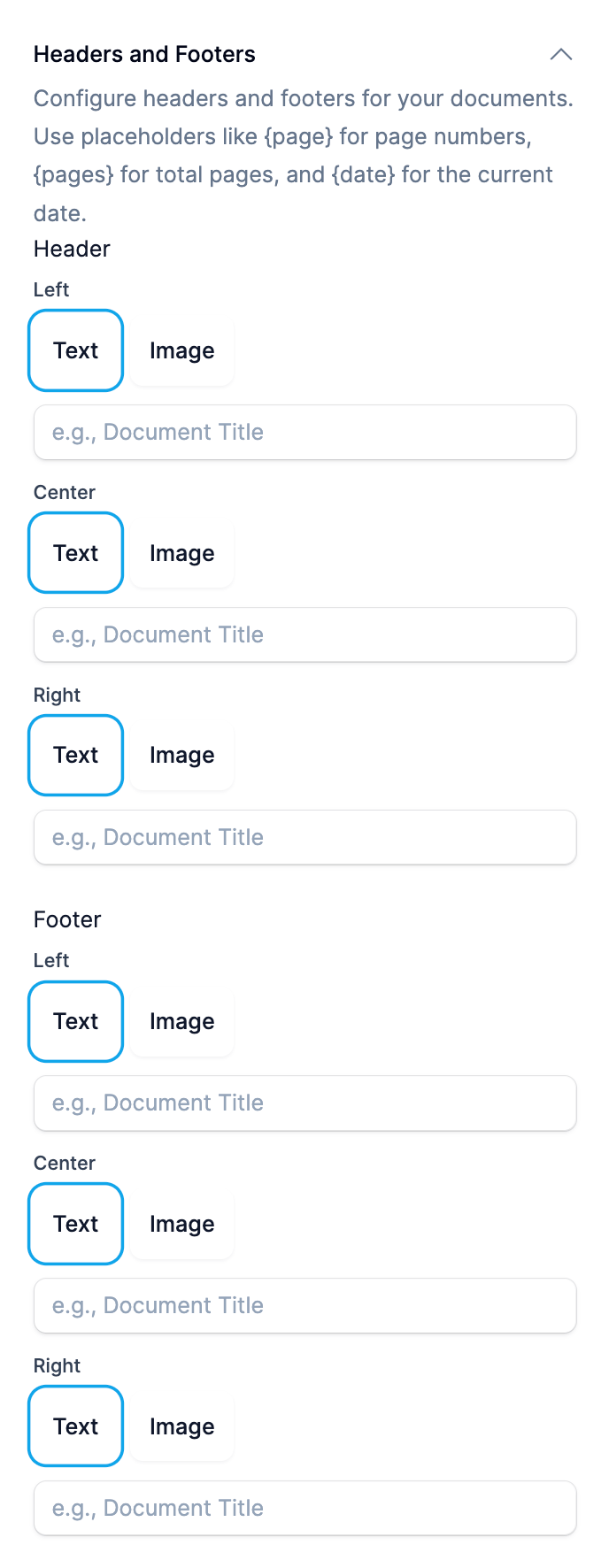
Specifying header and footer content
Text content
You can specify two types of text content of a header or footer section:- Static content: This is fixed text that is always populated as specified. This could be “Quote Proposal” or the name of your agency (“My Agency, LLC.”)
- Dynamic content: There are placeholders that are replaced with dynamic content when the document is rendered. Cara supports three types of placeholders:
{page}: Cara will replace any instance of the string{page}with the current page number (not including static start and end pages).{pages}: Cara will replace any instance of the string{pages}with the total number of pages (not including static start and end pages).{date}: Cara will replace any instance of the string{date}with the current date inMM/DD/YYYYformat.
Page {page} of {pages}, which will render like Page 1 of 6.
Image content
You can upload an image to any of the header and footer sections. Cara will automatically resize the image, and give you an option to specify the height of the image. Simply drag-and-drop a PNG file (max 8MB) and save the style to see a preview of the generated document.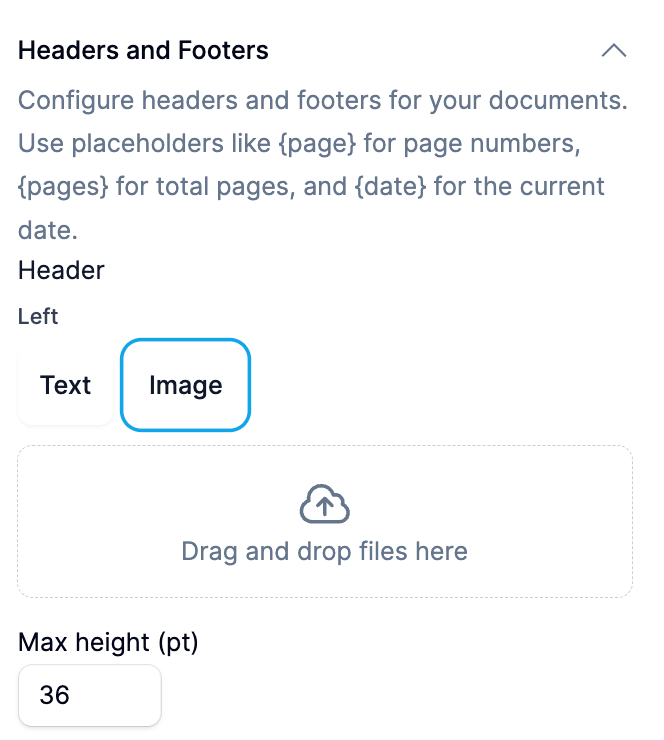
Specifying an image for header and footer content