

How It Works
1
Generate a document
Prompt Cara to create any document.
2
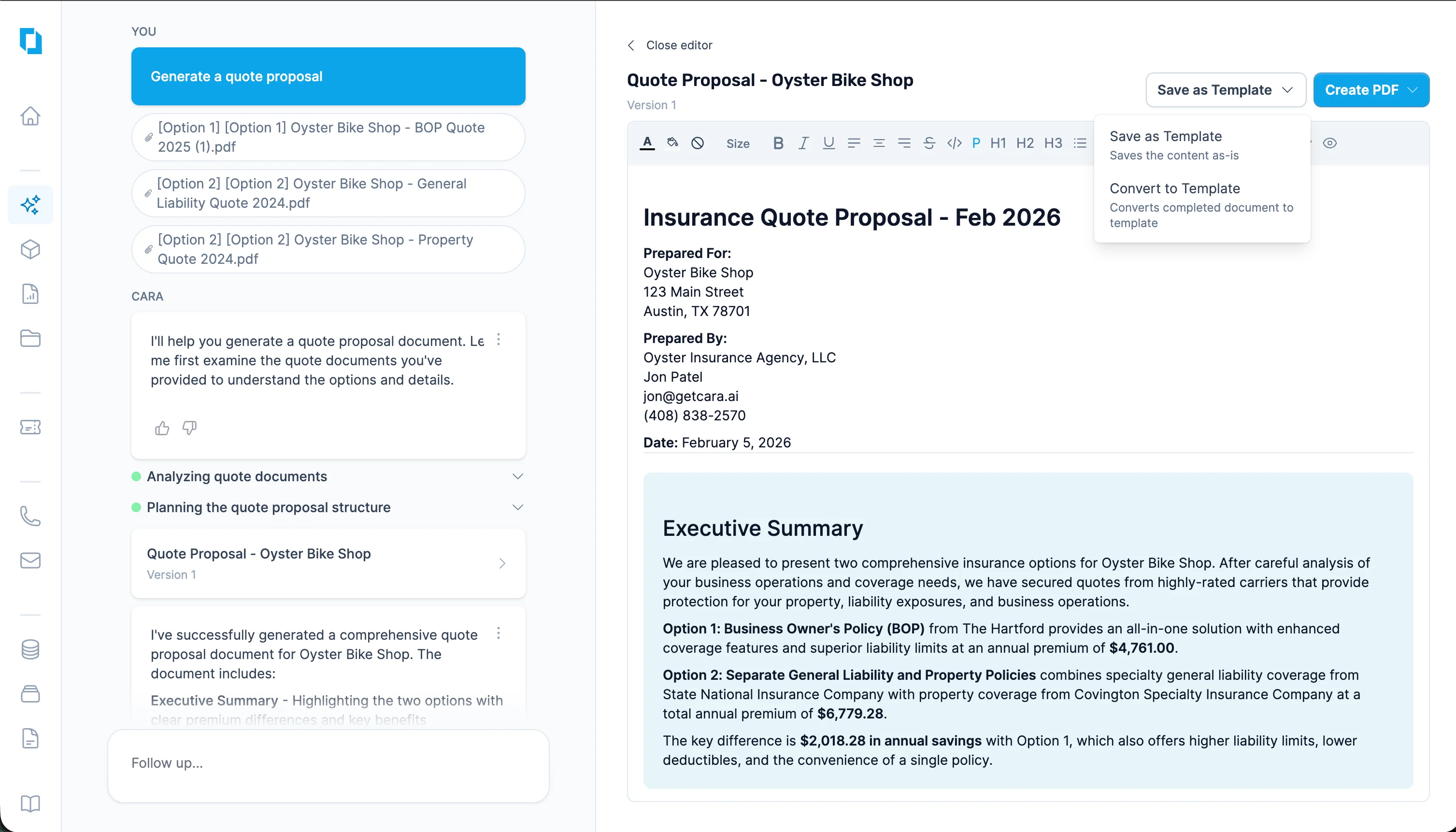
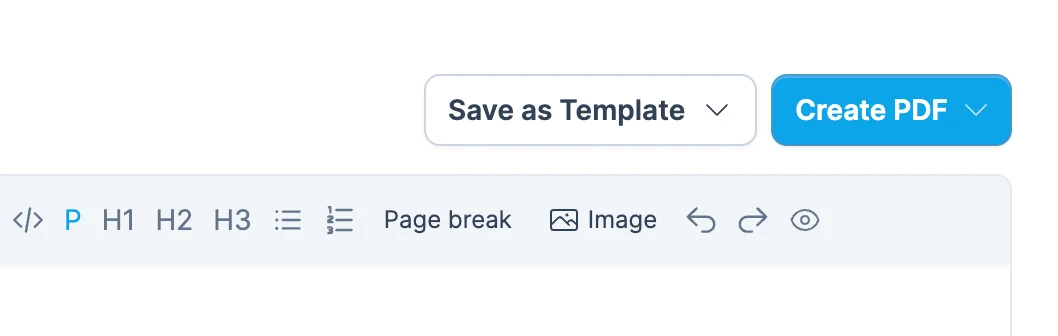
Click "Save as Template" and select "Convert to Template" in the drop down
Once you’re happy with the look and formatting, click Save as Template in the file editor and select Convert to Template
3
Cara converts it
Cara will analyze the document and replace variable content (names, dates, limits, premiums, etc.) with placeholders in
[[DESCRIPTOR]] format, while preserving all formatting, colors, tables, and layout.4
Review and save
Review the generated template, make any adjustments. Click “Save as Template” again, and select “Save as Template”. Your saved templates will appear in the Styles tab.
Editing Templates
After a template is created, you can customize it in three ways:Before Saving
AI Chat-Based Editing Ask Cara to make changes in plain language. For example:- “Add a row for Cyber Liability to the premium summary table”
- “Change the header color to match our brand blue”
- “Add a new placeholder for the account manager’s phone number”
- Adjusting wording
- Table structures and layouts
- Adding page breaks
- Fonts and spacing
- Updating static text (e.g. company name, disclaimers)
- Renaming placeholders
- Adding new placeholders — type them using the
[[DESCRIPTOR]]format (e.g.[[COMPANY_NAME]],[[DATE]])
After Saving
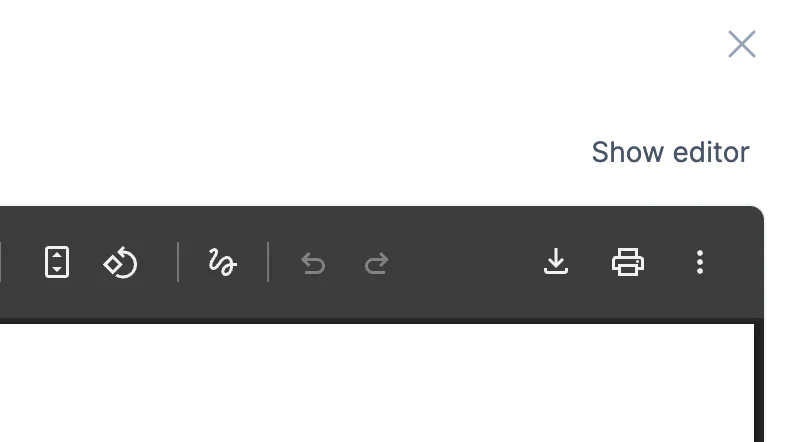
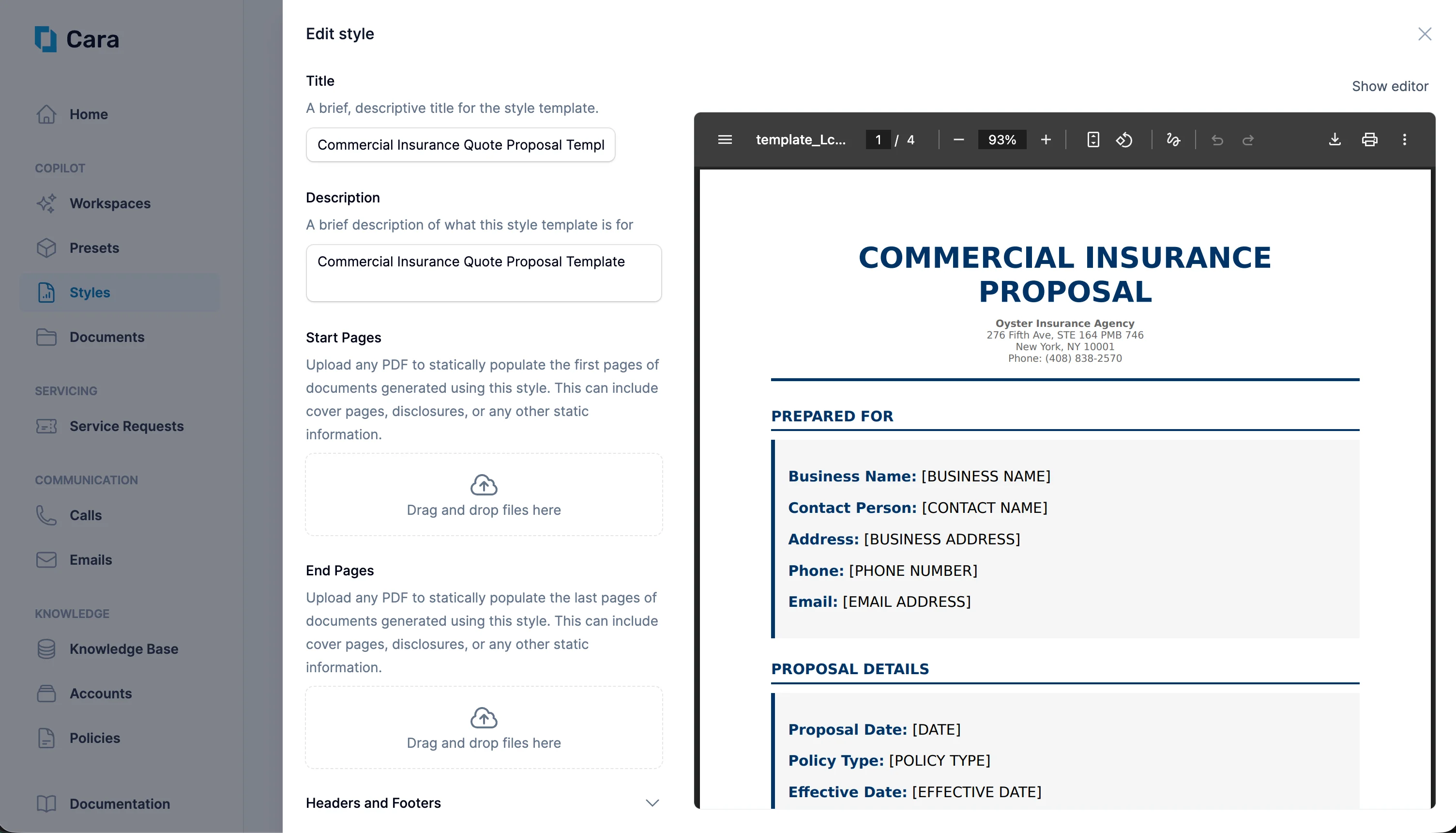
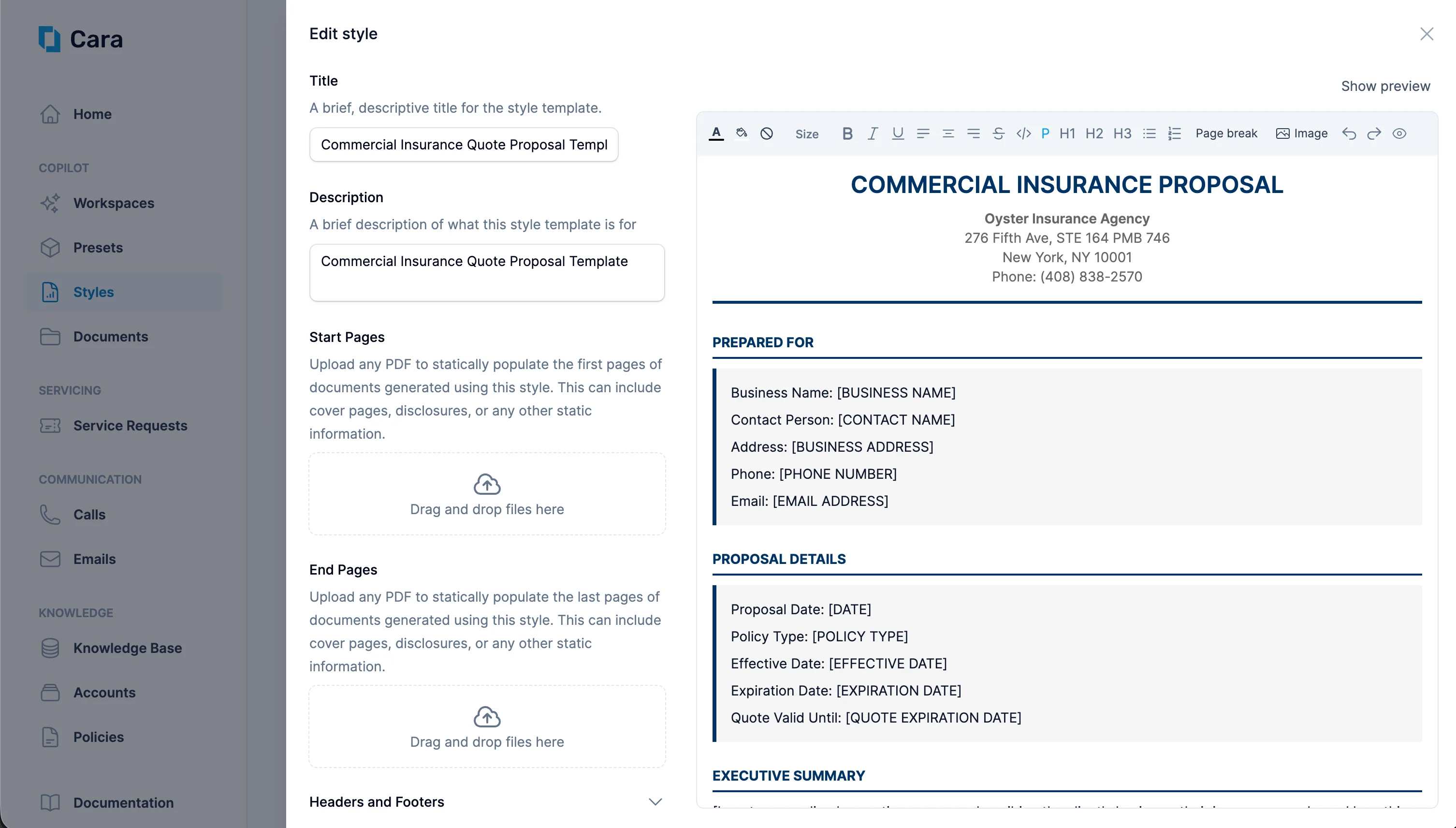
Once saved, your template is available in the Styles tab where you can- Toggle between Preview and Editor using the button in the toolbar. Preview shows the full document with all styles applied, while Editor shows only the template content for editing.
- Add Start Pages and End Pages (e.g. branded cover pages, legal disclaimers)
-
Configure Headers and Footers
-
Edit the template content (placeholders, layout, fonts, colors) in the style editor
- Adding your agency or company logo
- Inserting icons next to service descriptions
Word Template Builder New
The Word Template Builder is a dedicated editor for authoring reusable Word (.docx) templates from scratch or from an uploaded reference document. It complements the AI-conversion flow above — use the builder when you have a specific document structure in mind that you want to enforce every time.
Open the builder from Copilot → Templates → New Word Template.
Choose a layout
The first decision is layout, and it determines how the rest of the template behaves:Simple
A single-body document. Best for short, unstructured documents — a cover letter, a one-page notice, a compact certificate. Placeholders live directly in the body.
Sectioned
A document composed of ordered sections. Best for structured deliverables — quote proposals, risk reports, renewal packets — where different parts of the document have different rules and reuse potential.
Section types (Sectioned layout)
In a Sectioned template, each section carries a type that controls how Cara treats it at generation time:
You can mix types within a template. A typical quote proposal might use a Static cover section, a Required executive summary, and a Repeatable per-quote coverage block.
Uploading a reference
Both layouts accept a reference.docx upload. The builder ingests the file as the starting point for the template body (Simple) or the current section (Sectioned) — you keep the original formatting and only need to swap variable content for [[PLACEHOLDER]] fields.